The portal is where you look after everything — your projects, your code, your data and every device you have out in the world. Here is each screen with a real screenshot, and what you can do on it. The account shown is an invented one: a gym, Northgate Fitness, with a Check-in project for its reception kiosks — the same example as the deployment guide.
Every screen shown is livePortal access is early access
35 screens. Click or tap any of them to see it full size.
Getting in
Signing in, and making an account.
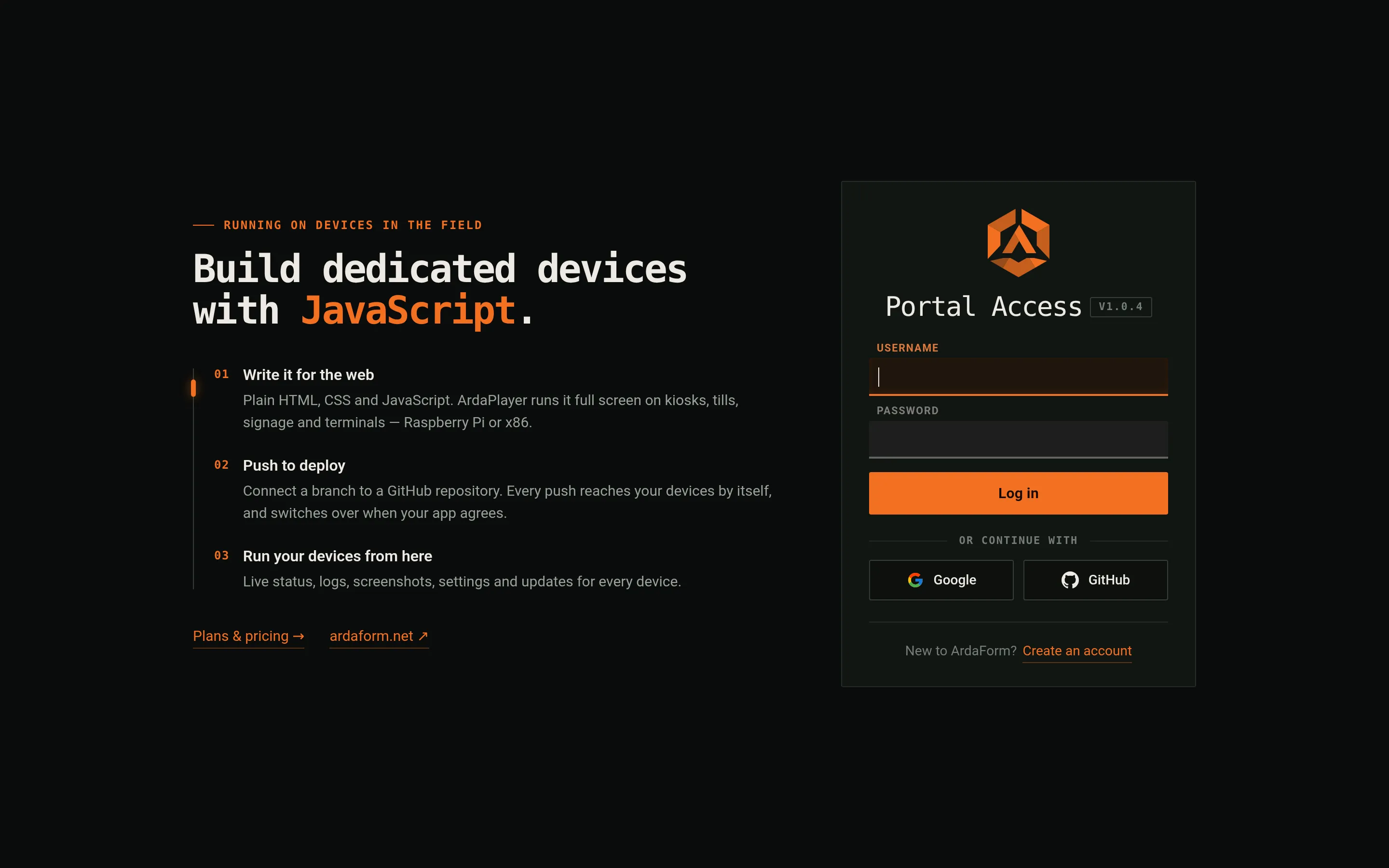
portal.ardaform.netTap to enlargeSign in. Sign in with your username and password, or with Google or GitHub. Each browser tab keeps its own login, so two tabs can be two different people — and closing the tab signs you out.portal.ardaform.netTap to enlargeThe order page. Where a new account starts: pick a plan, fill in your details — or continue with Google or GitHub — and accept the terms. Paid plans are paid by card through Stripe, and until the payment goes through the account runs on the free plan. Need more than the biggest plan? Talk to us on the Custom card.
Dashboard
The first screen after you sign in, and the one to leave open.
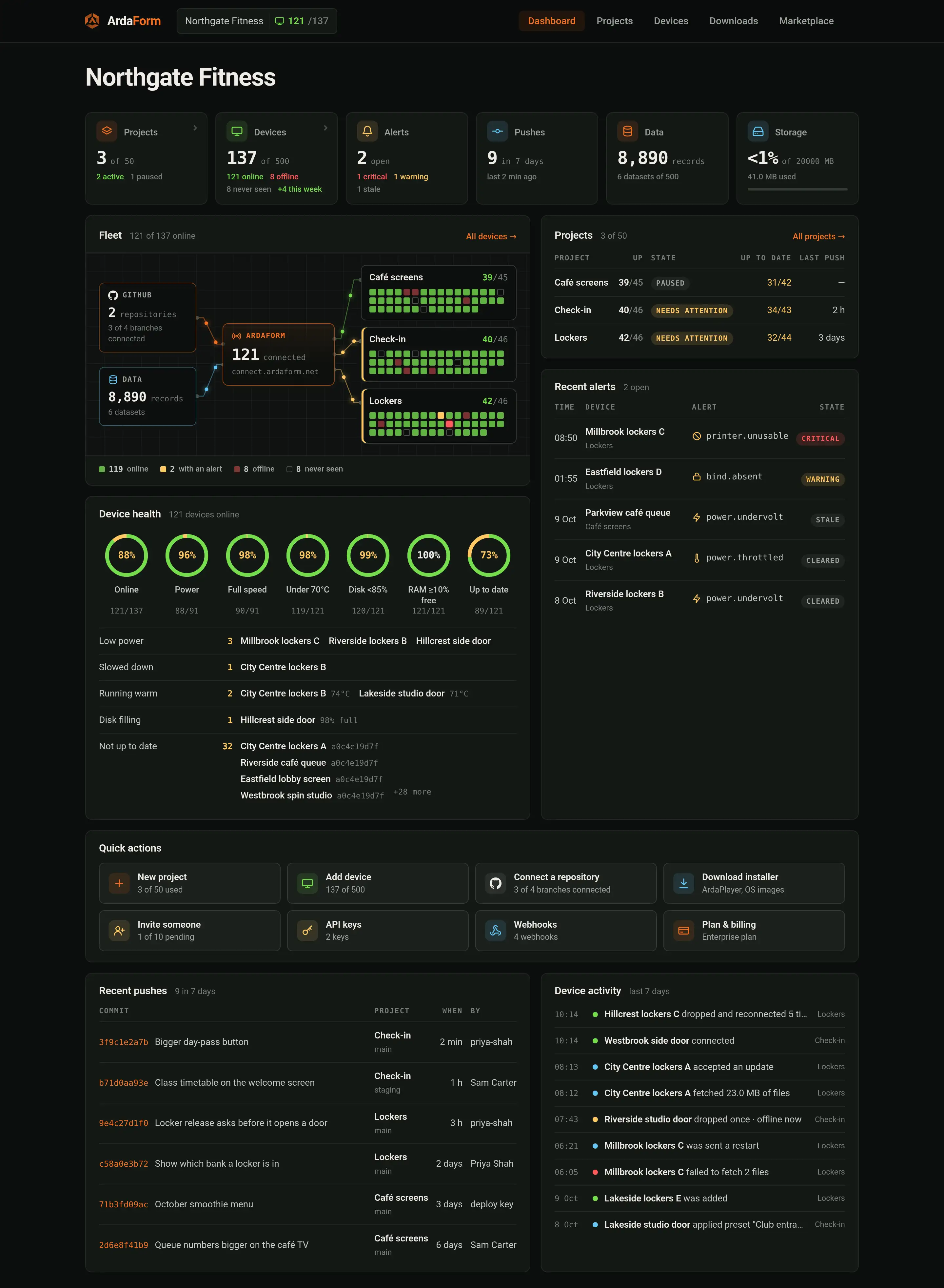
portal.ardaform.netTap to enlargeDashboard. Your whole account at a glance: devices online, open alerts, recent pushes, and how much data and storage you use. The fleet map draws one square per device, so when something goes wrong you see its shape straight away. Device health counts the machines on good power, running cool and up to date, and quick actions jump to the jobs people do most.
Projects & devices
A project is one app and everything around it. Its devices are the machines running that app.
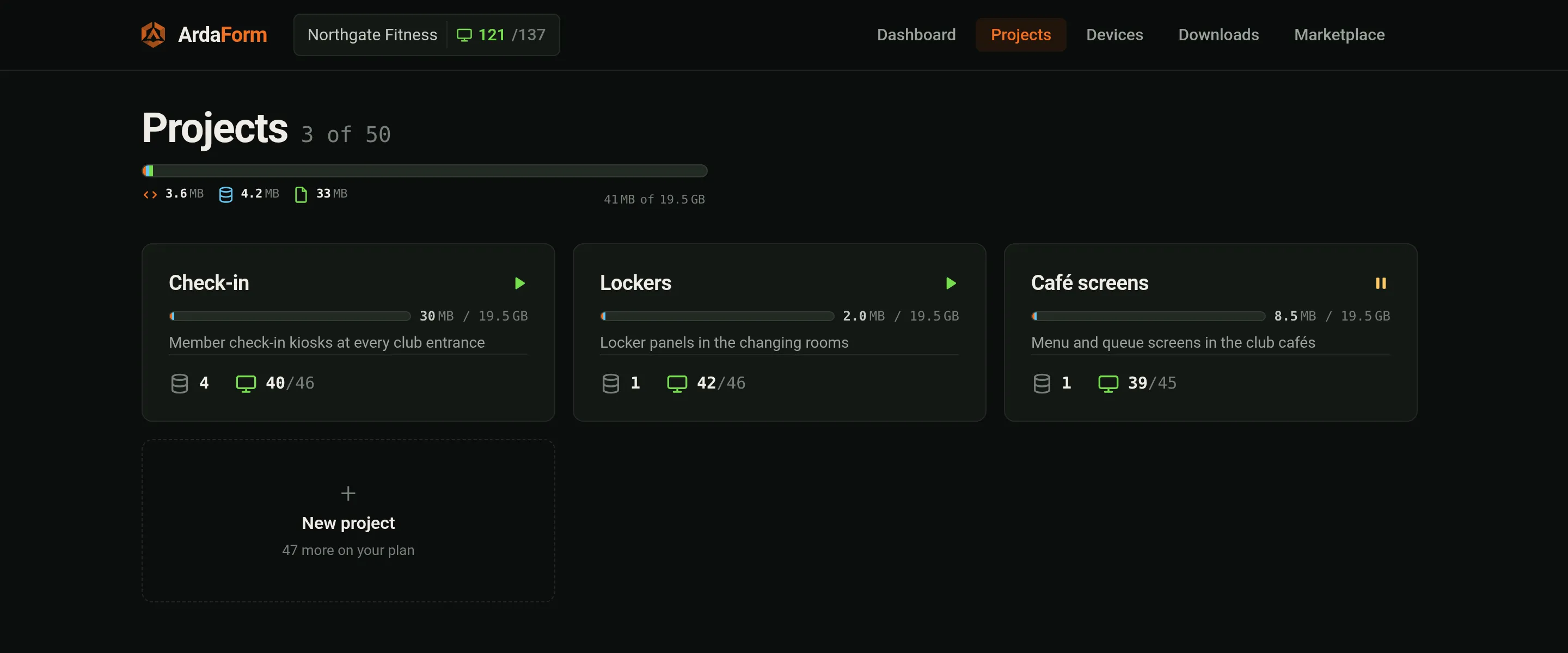
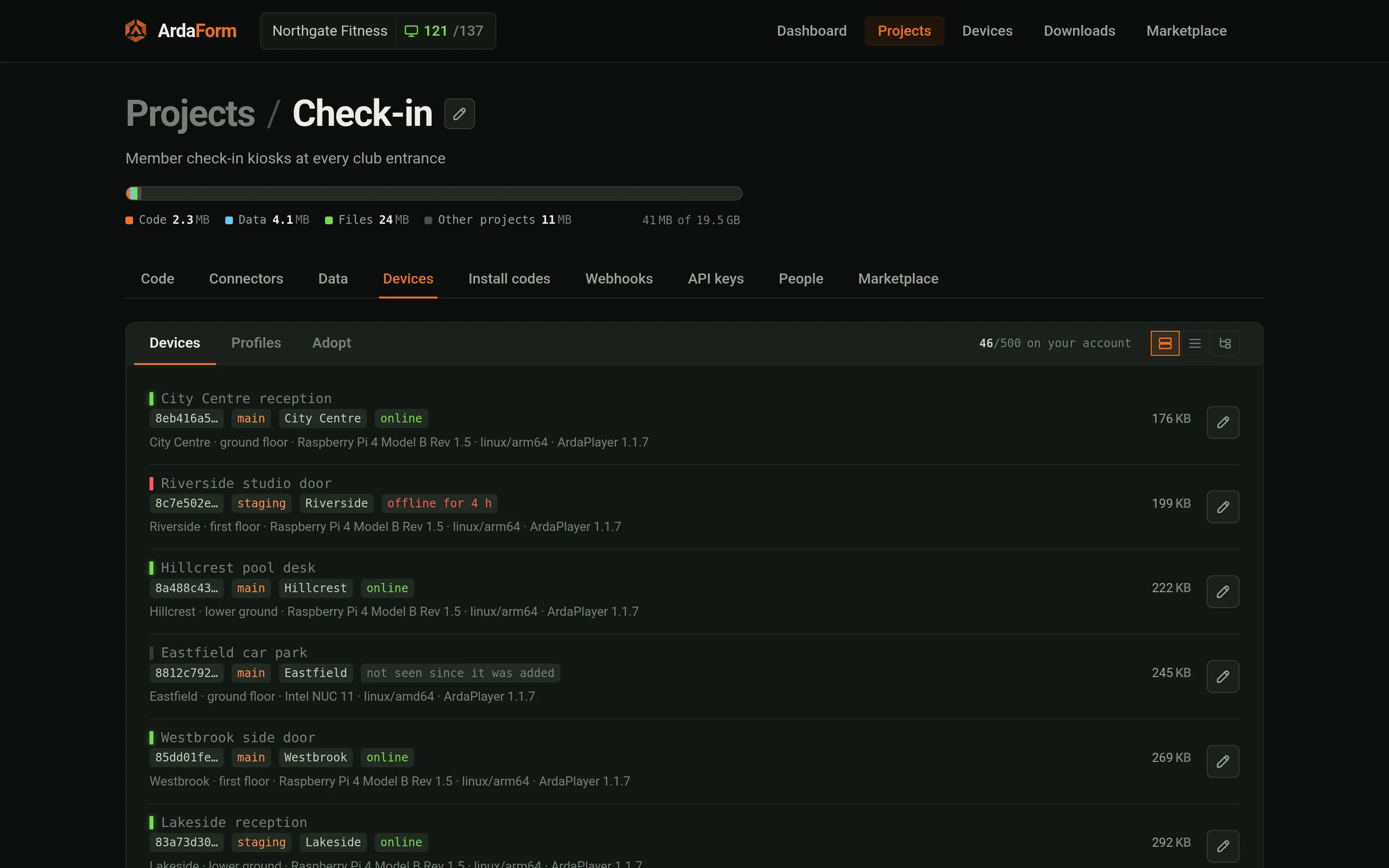
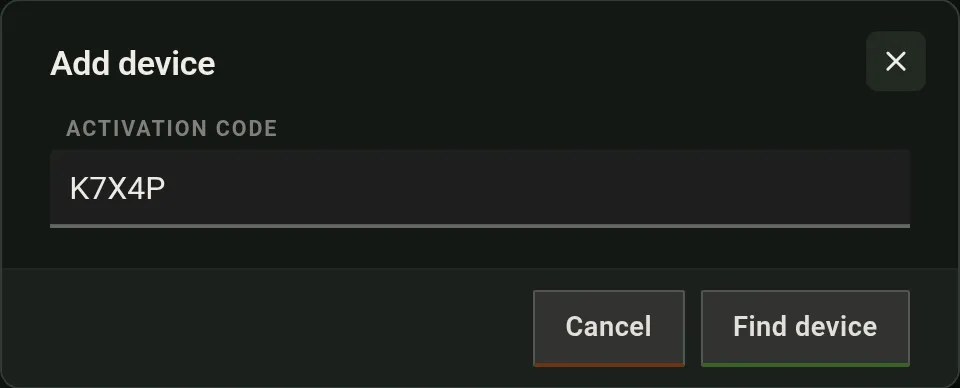
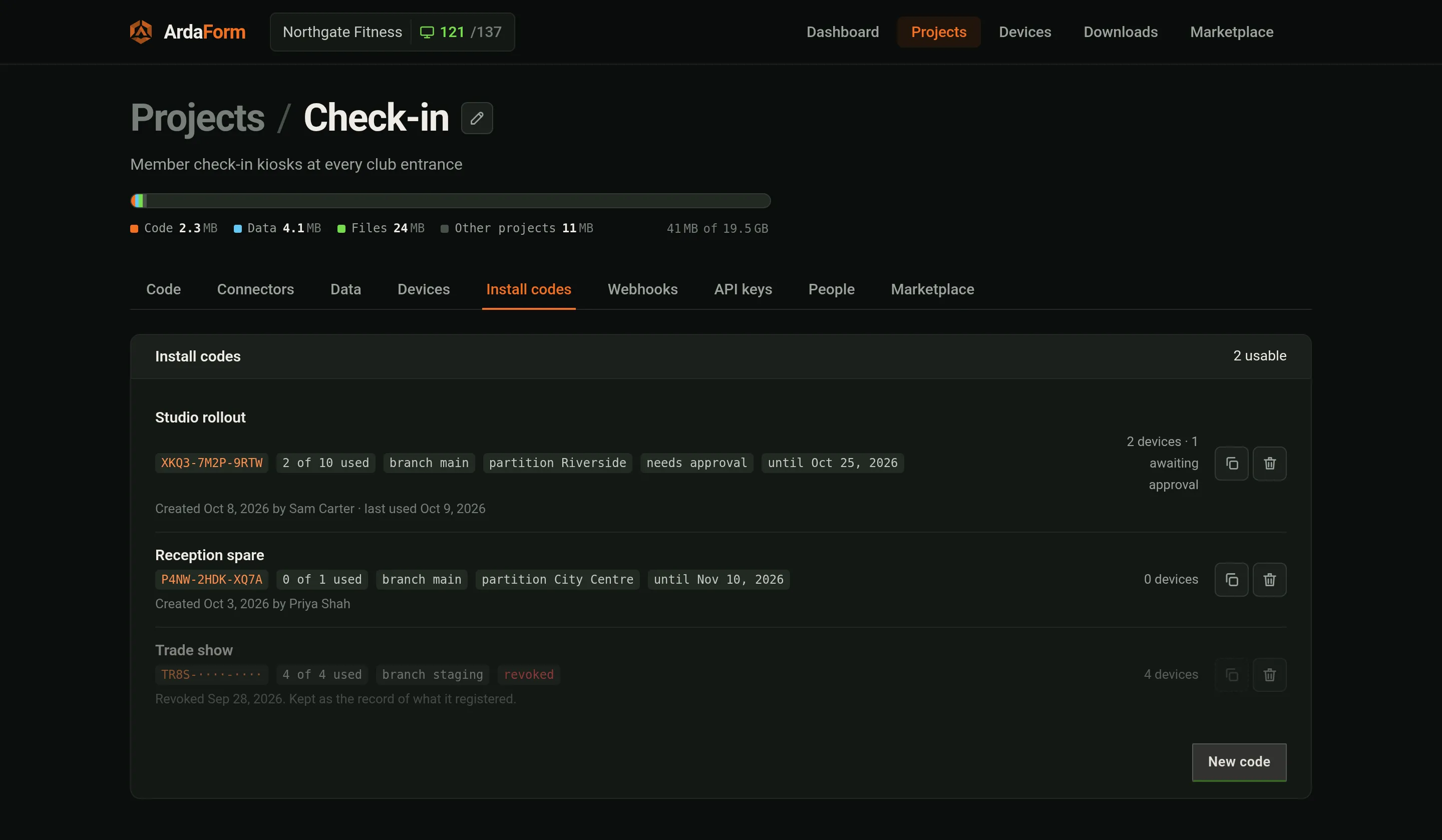
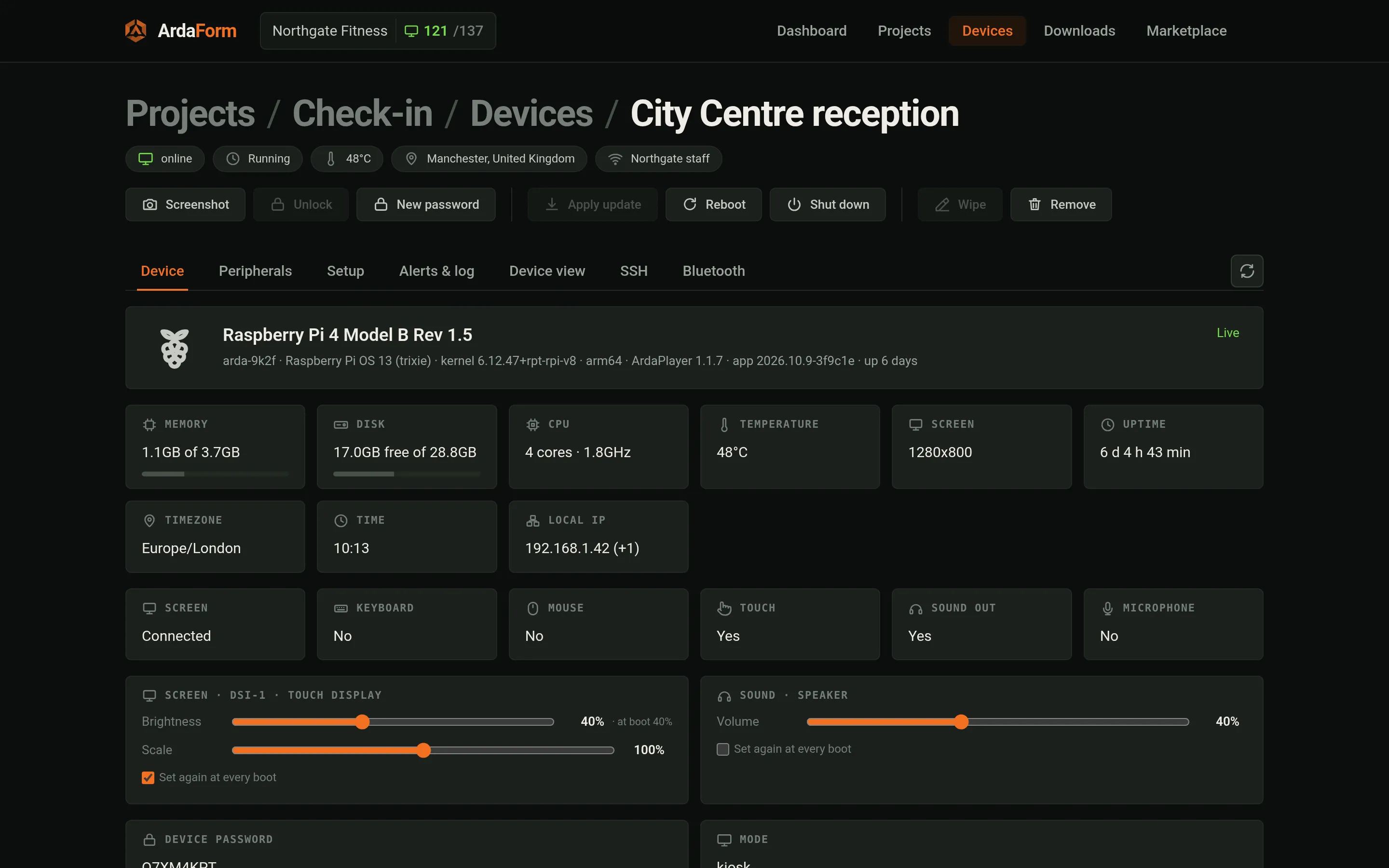
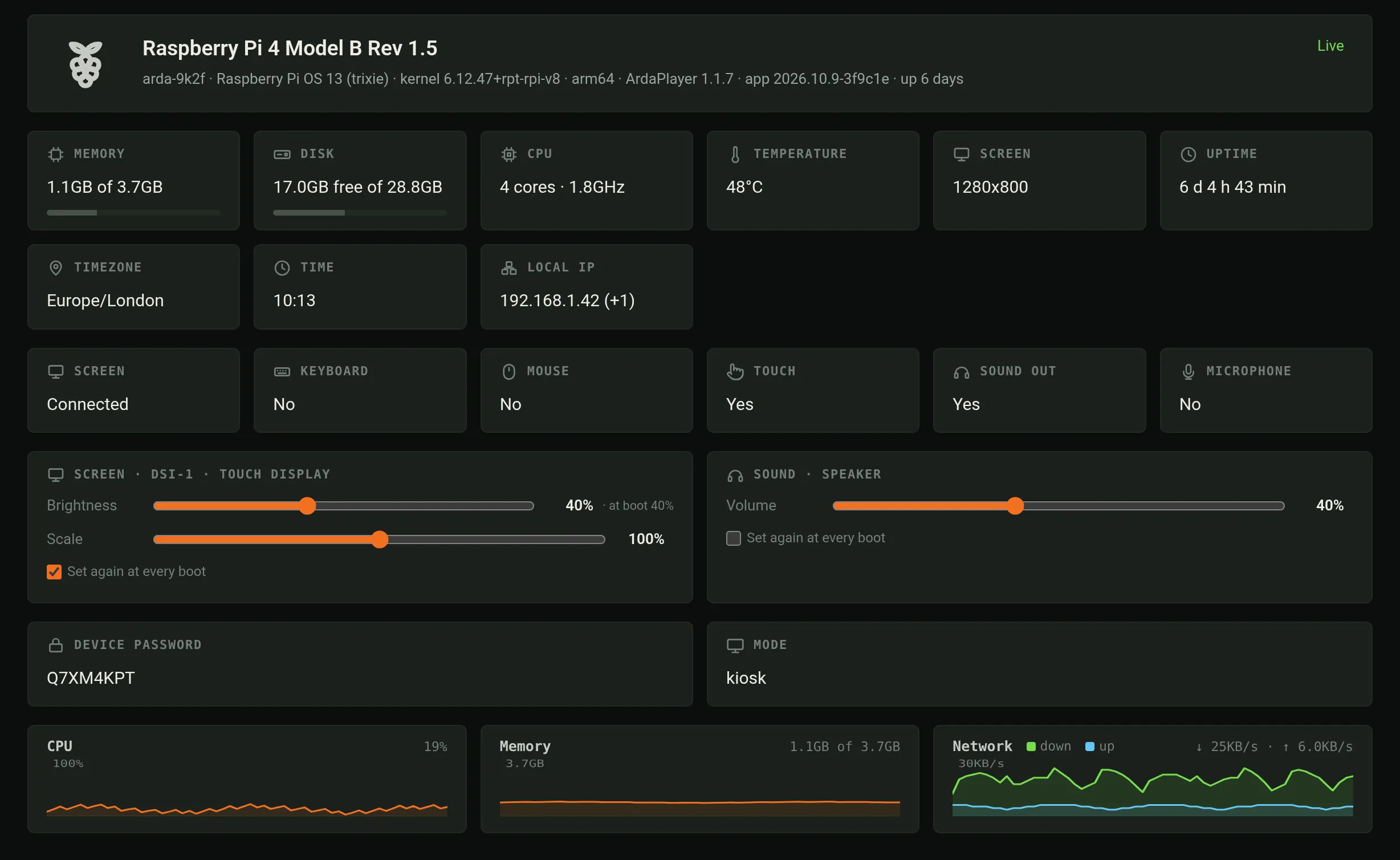
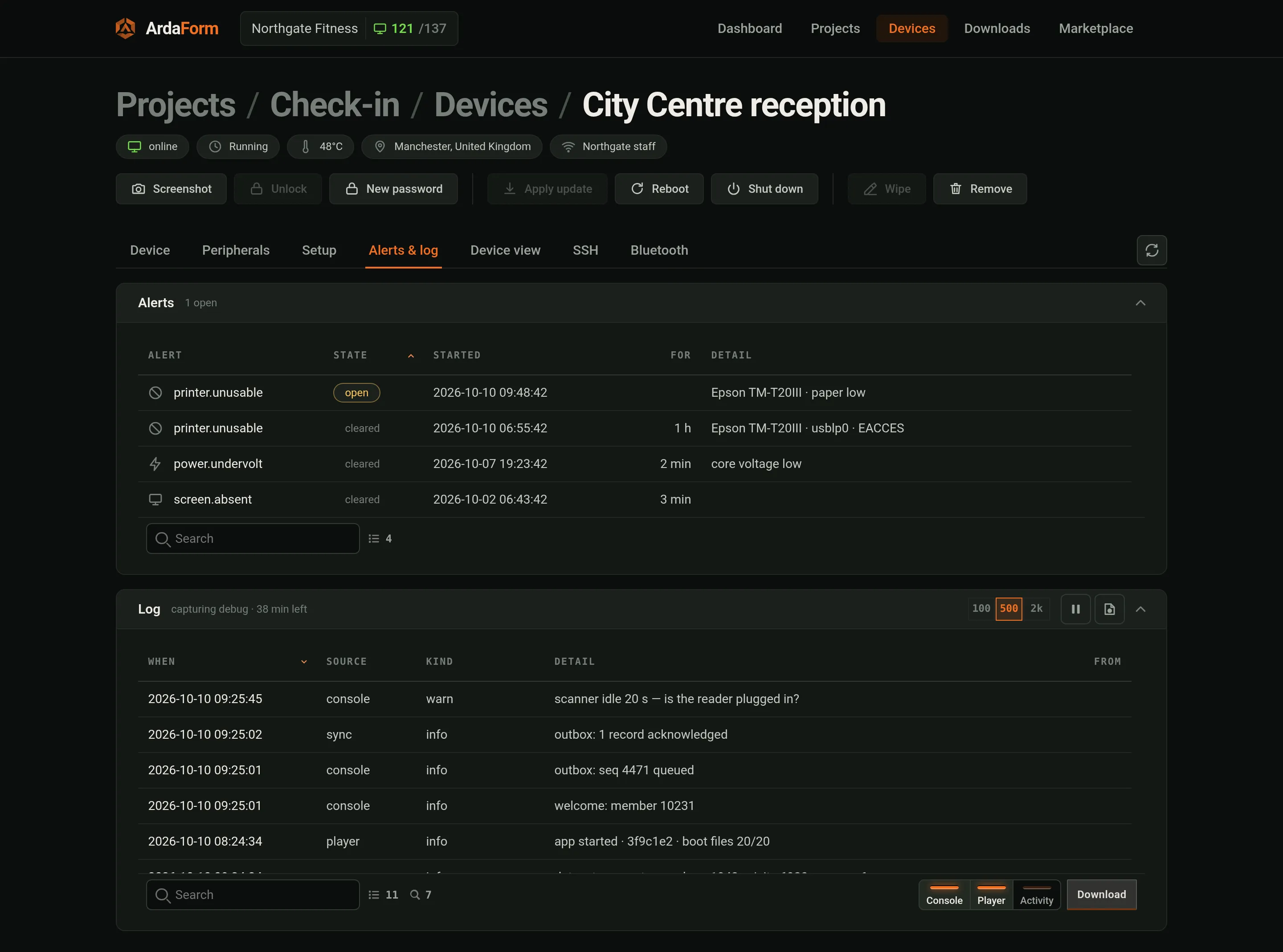
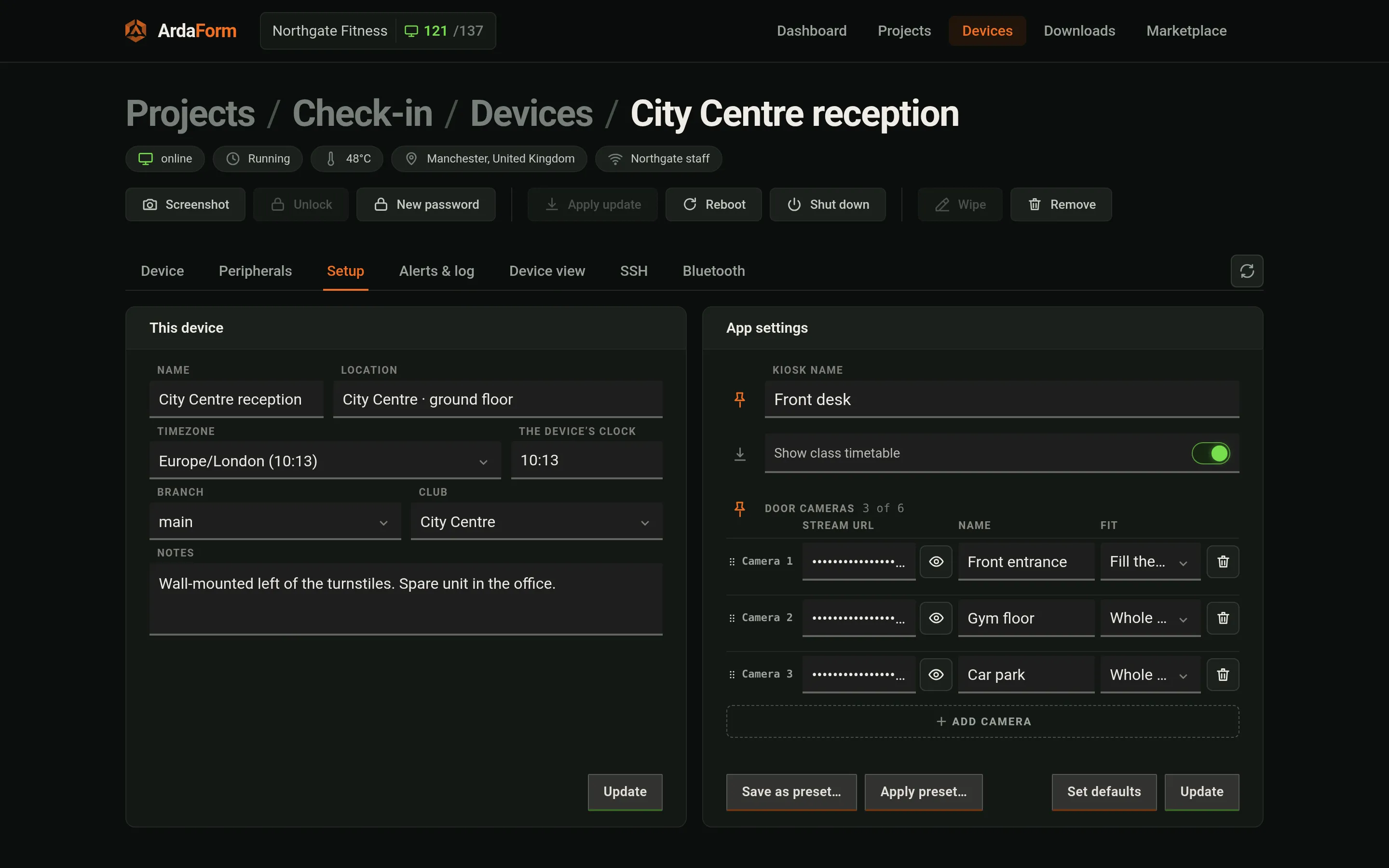
portal.ardaform.netTap to enlargeProjects. Every project in your account and how its devices are doing. Open one to reach its code, data, devices and settings.portal.ardaform.netTap to enlargeDevices. The devices in a project, each with its branch, its site and its state — online, offline for a while, or not seen since it was added. Click one to open it.portal.ardaform.netTap to enlargeAdd a device. A new device shows a five-character code on its screen. Type it here and press Find device; the next step shows the model it reported, so you can check it is the machine in front of you, then name it and add it.portal.ardaform.netTap to enlargeInstall codes. For machines somebody else will set up: make a code, type it into the USB installer, and each machine installed with it joins the project by itself — on the branch you picked, and waiting for your approval if you asked for that.portal.ardaform.netTap to enlargeOne device. Everything about one machine on one screen: whether it is online and running, its temperature, roughly where it is and which Wi-Fi it is on — and buttons to take a screenshot, issue a new password, apply an update, reboot or shut it down, or remove it.portal.ardaform.netTap to enlargeThe machine. What the device reports about itself — model, system, memory, disk, screen and uptime — the brightness, scale and volume you can change, the device password, and live CPU, memory and network graphs.portal.ardaform.netTap to enlargeAlerts and log. Problems the device has raised — a printer low on paper, low power, a screen unplugged — and what it has written to its log. Turn on more detail for a while when you are chasing something down.portal.ardaform.netTap to enlargeSetup. The device’s name, location, branch and data partition, and its own values for any setting the project lets each device change. Save a set of values as a preset and apply it to the next device in one go.
Code & updates
Your app’s code comes from GitHub. These screens show what each branch is running and where it reads from.
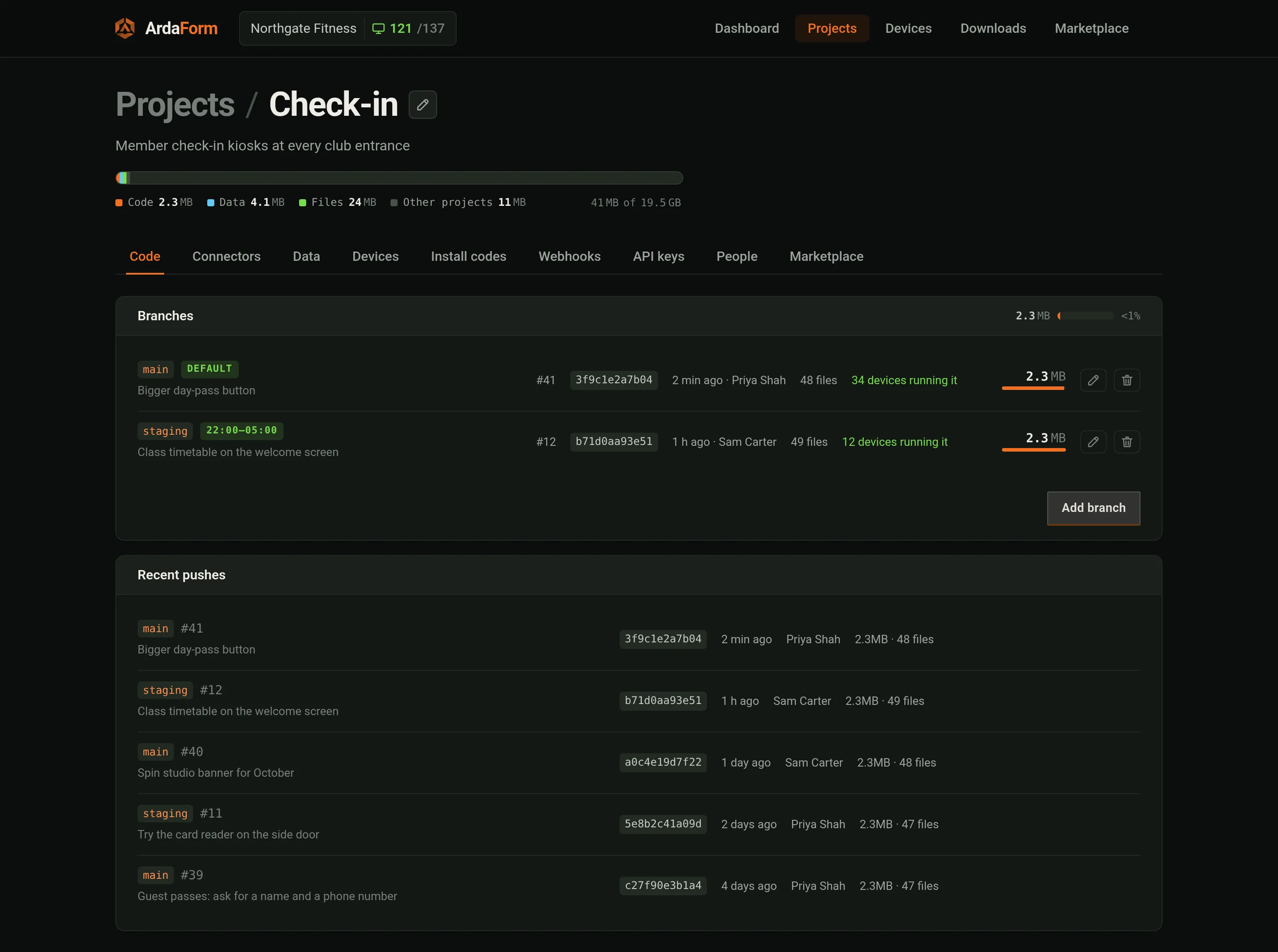
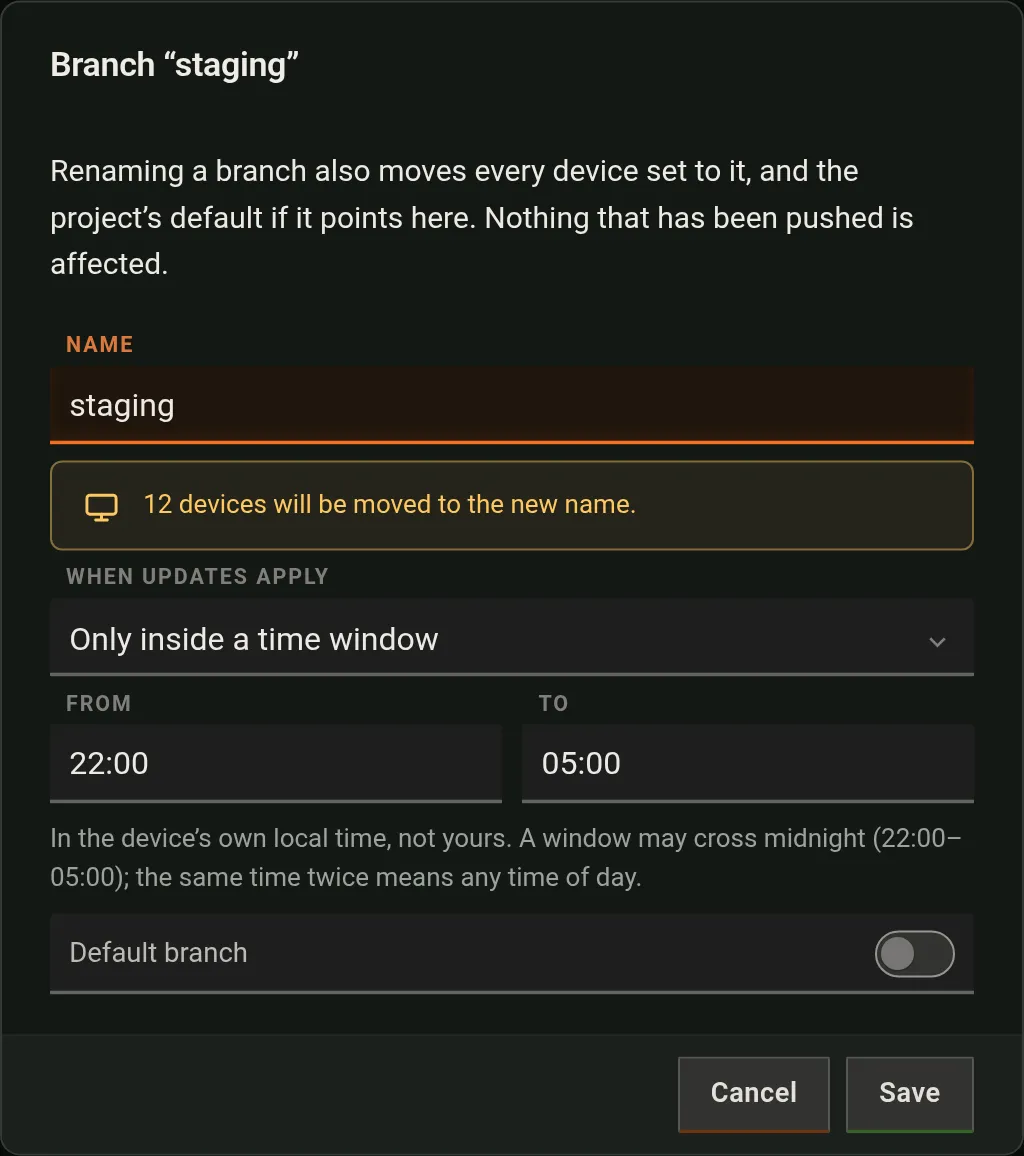
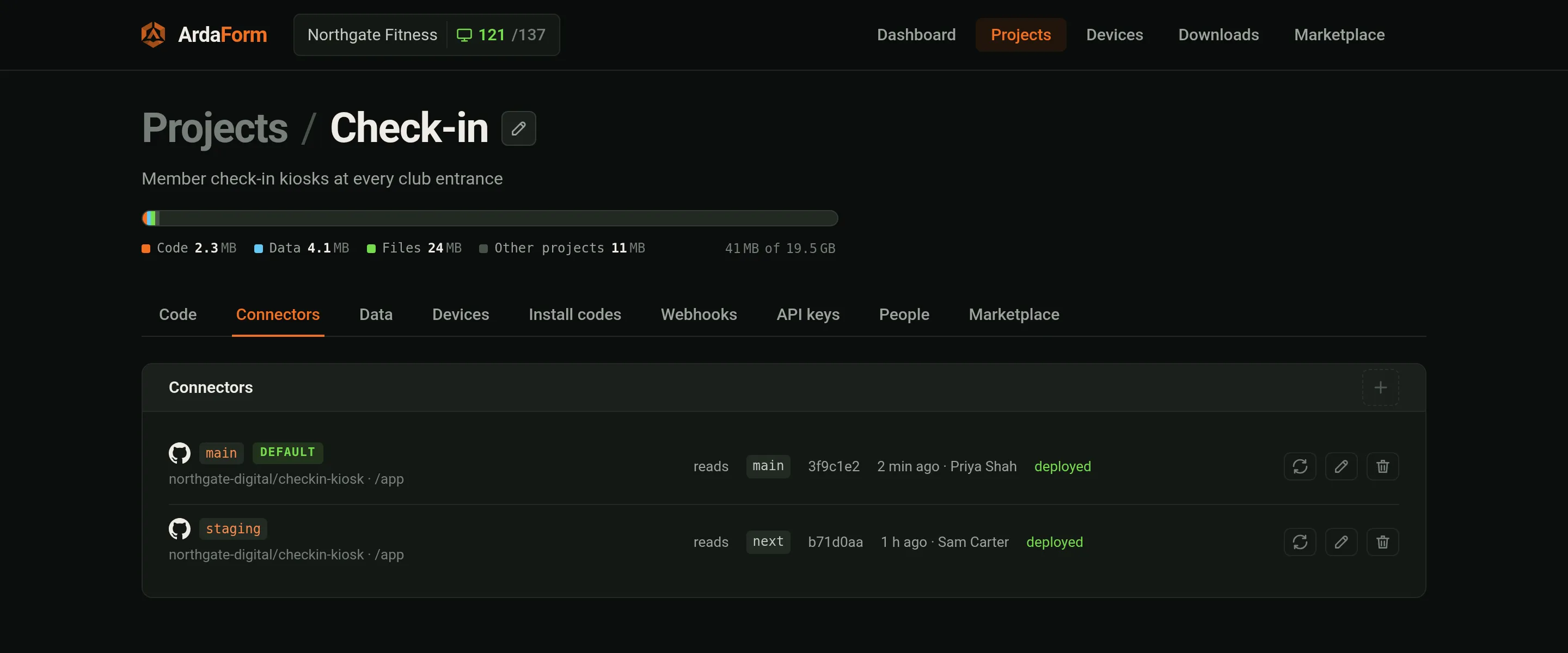
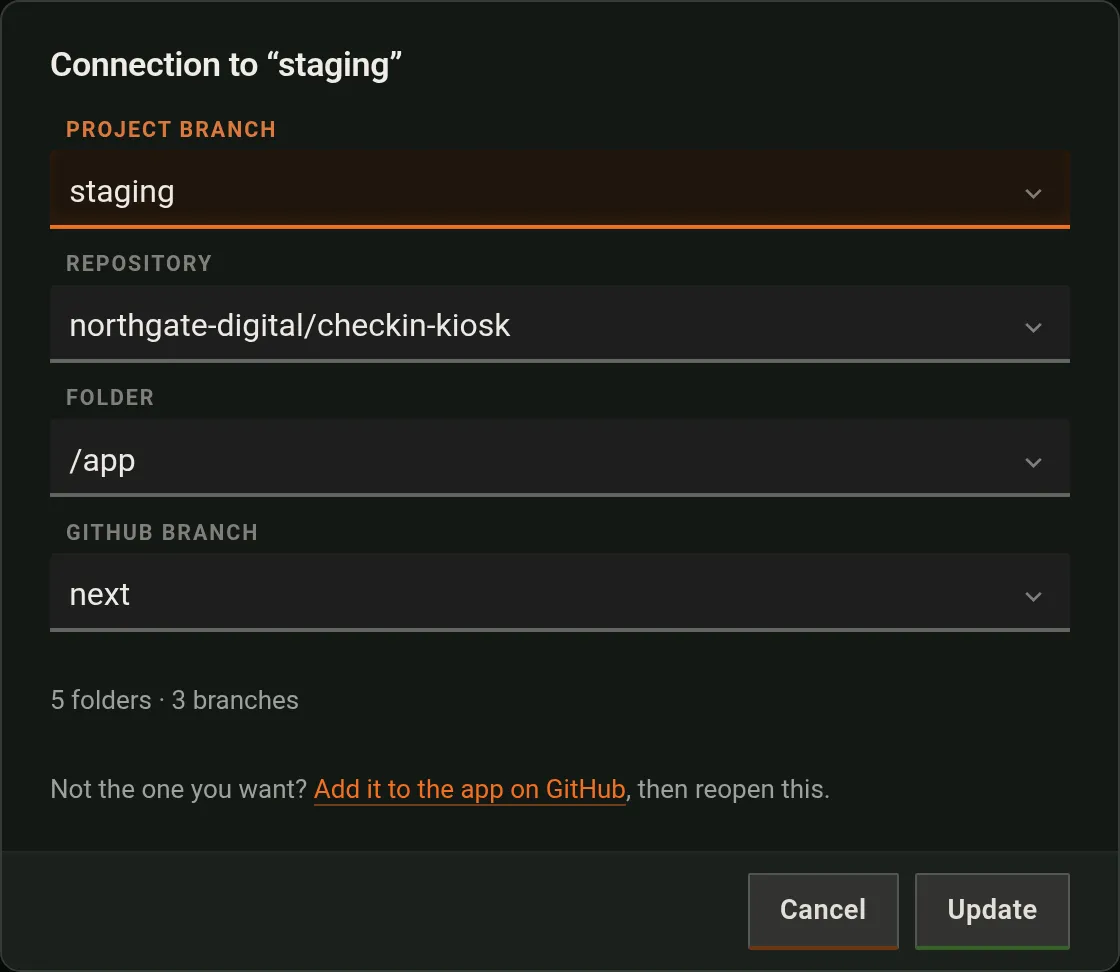
portal.ardaform.netTap to enlargeCode. Your branches — here main and staging — with the latest push on each, how many devices follow it, and the recent pushes. A push to GitHub shows up here and is on its way to the devices within seconds.portal.ardaform.netTap to enlargeEdit a branch. Name the branch and choose when its devices install updates: as soon as they arrive, only inside a time window such as overnight, or only when your app asks.portal.ardaform.netTap to enlargeConnectors. Where each branch gets its code: one line per branch, naming the GitHub repository, the folder and the git branch it follows.portal.ardaform.netTap to enlargeConnect a branch. Choose the project branch, then the repository, the folder your app lives in and the git branch to follow. The lists come straight from GitHub, so a folder you added this morning is already there.
Data & files
The data your app reads and writes, and the files it shows.
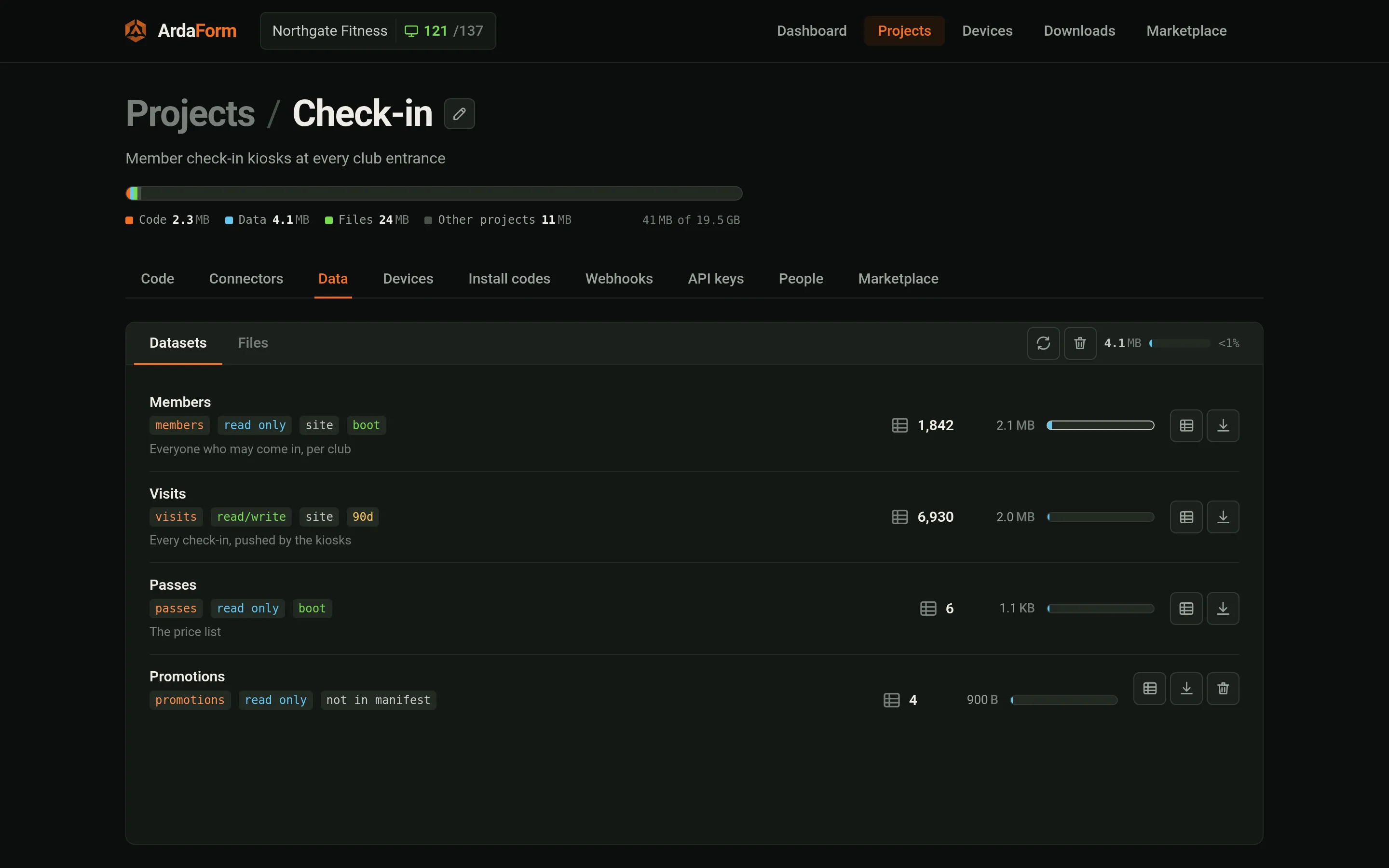
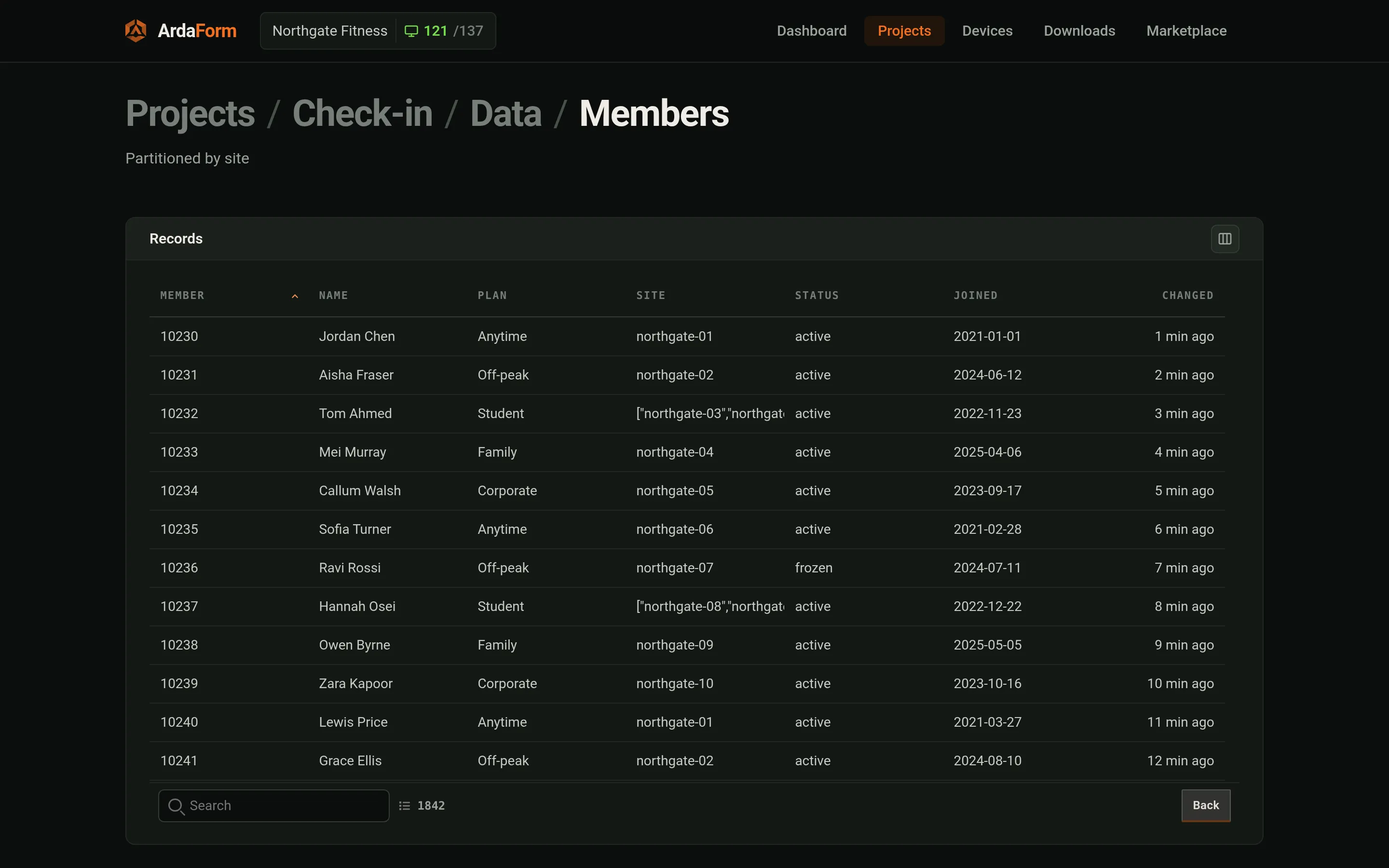
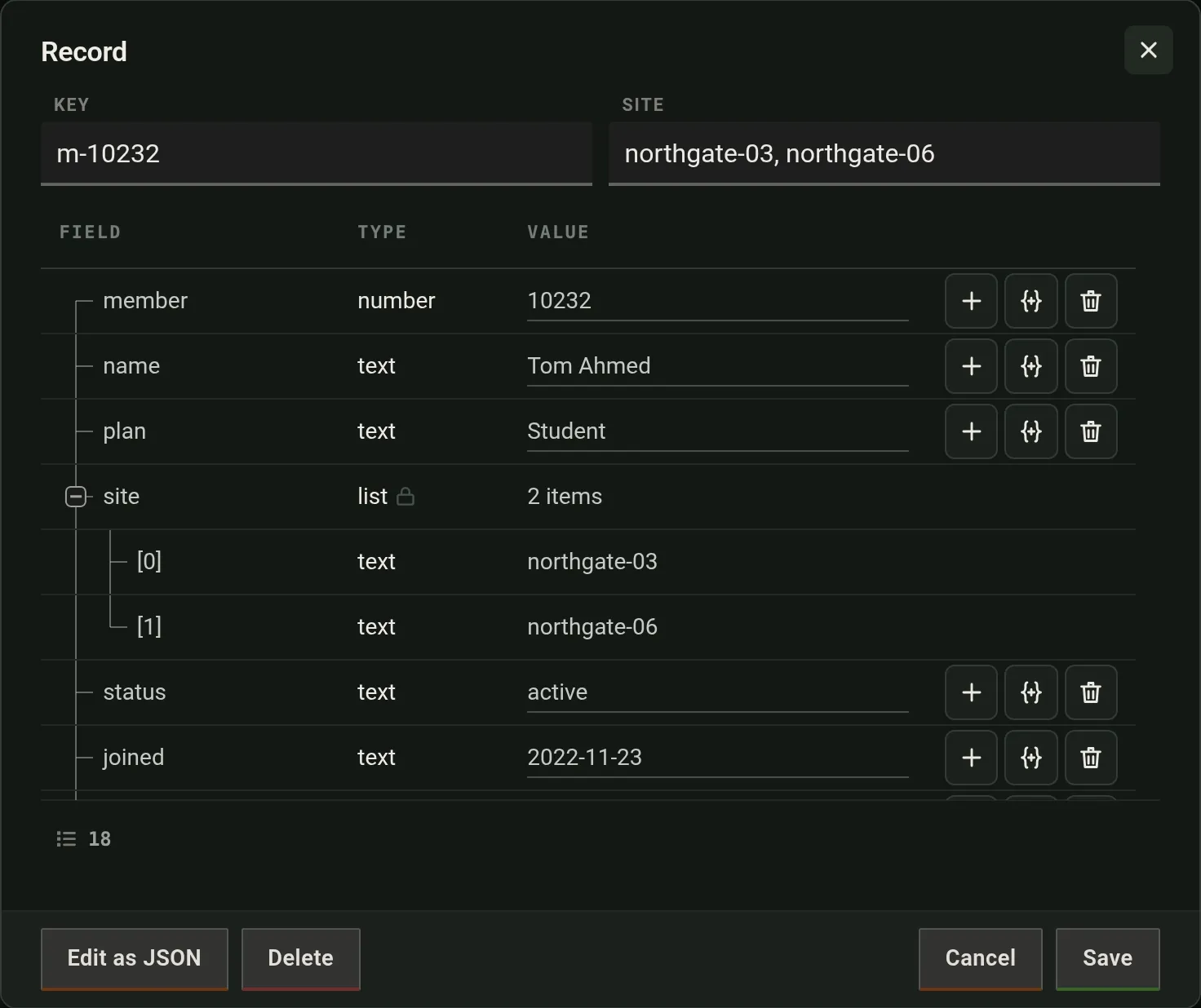
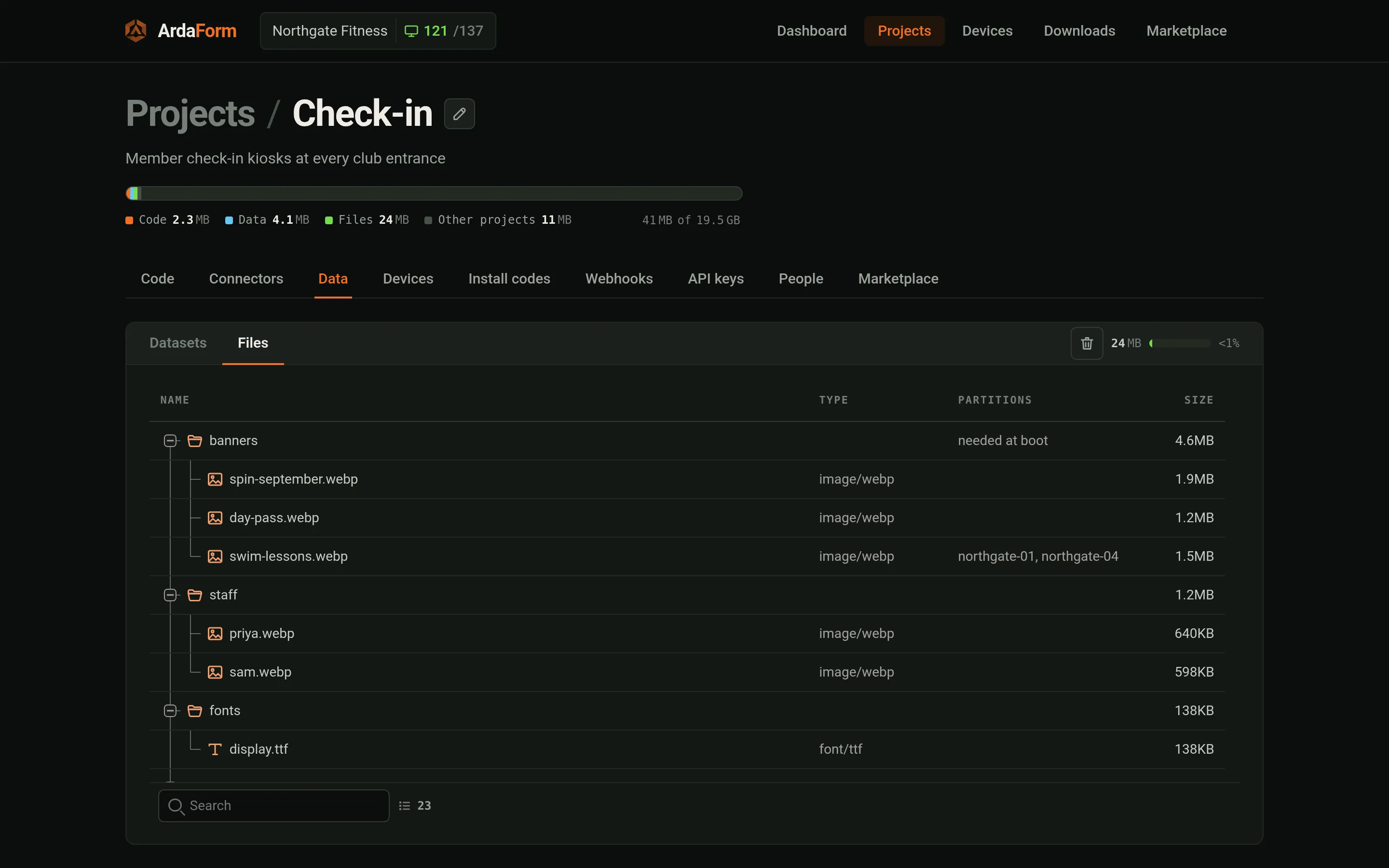
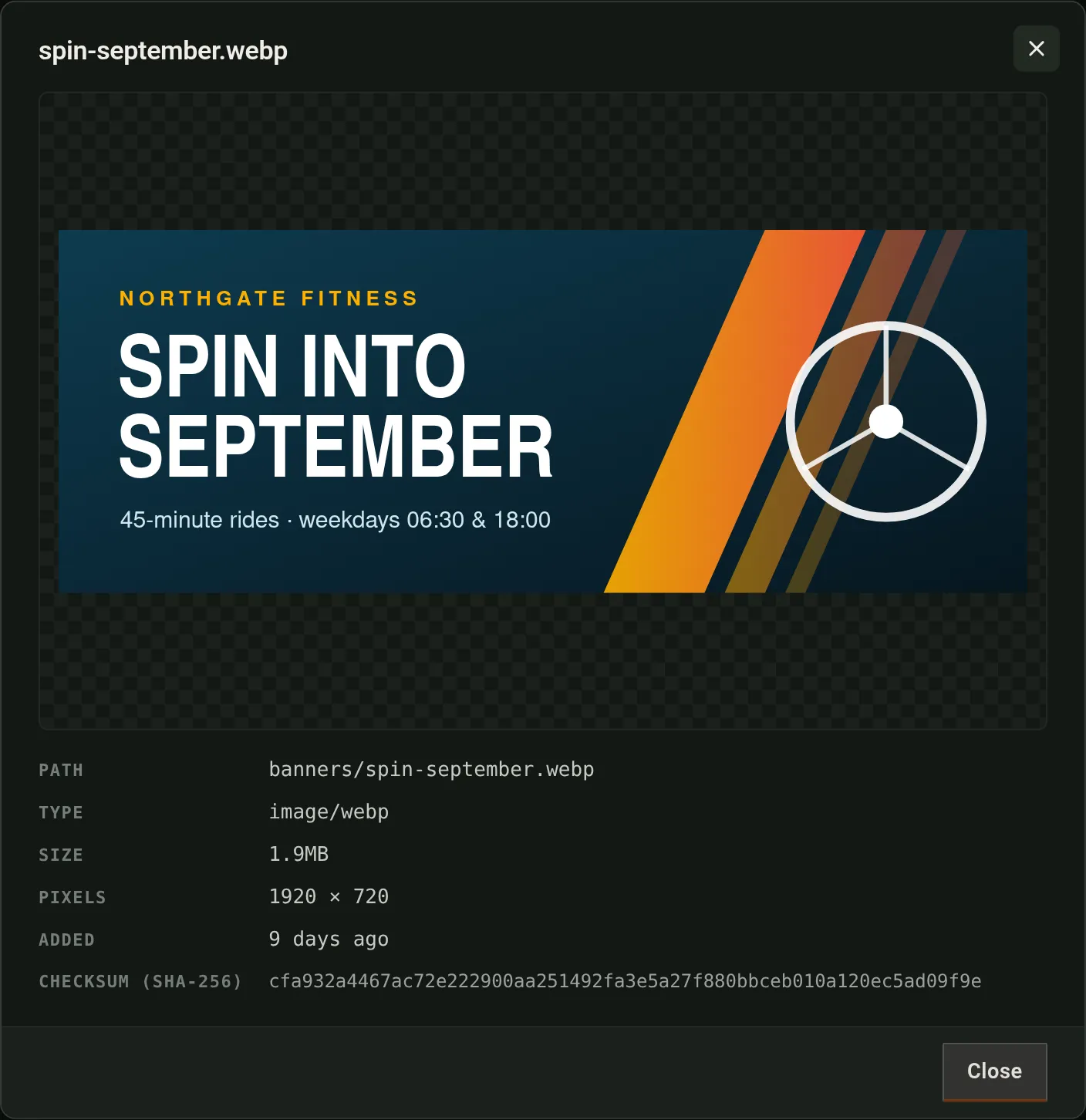
portal.ardaform.netTap to enlargeData. The datasets your app uses, with how many records each one holds and how much space it takes.portal.ardaform.netTap to enlargeRecords. Look inside a dataset: every record, and which partition — here which club — it belongs to. Records arrive from the devices, from this screen, or from your own systems through the HTTP API.portal.ardaform.netTap to enlargeEdit a record. Change a record field by field — a number stays a number and yes/no stays a switch — or open the JSON view to fix it by hand.portal.ardaform.netTap to enlargeFiles. The project’s images, fonts and other files as a folder tree, with the folders the app needs at boot. Devices download the ones they need by themselves.portal.ardaform.netTap to enlargeFile details. Click a file to preview an image and see its full path, its size and the fingerprint every device checks its copy against.
Settings
Values your app reads as Arda.config — a price, a shop name, a list of cameras — changed here without touching the code.
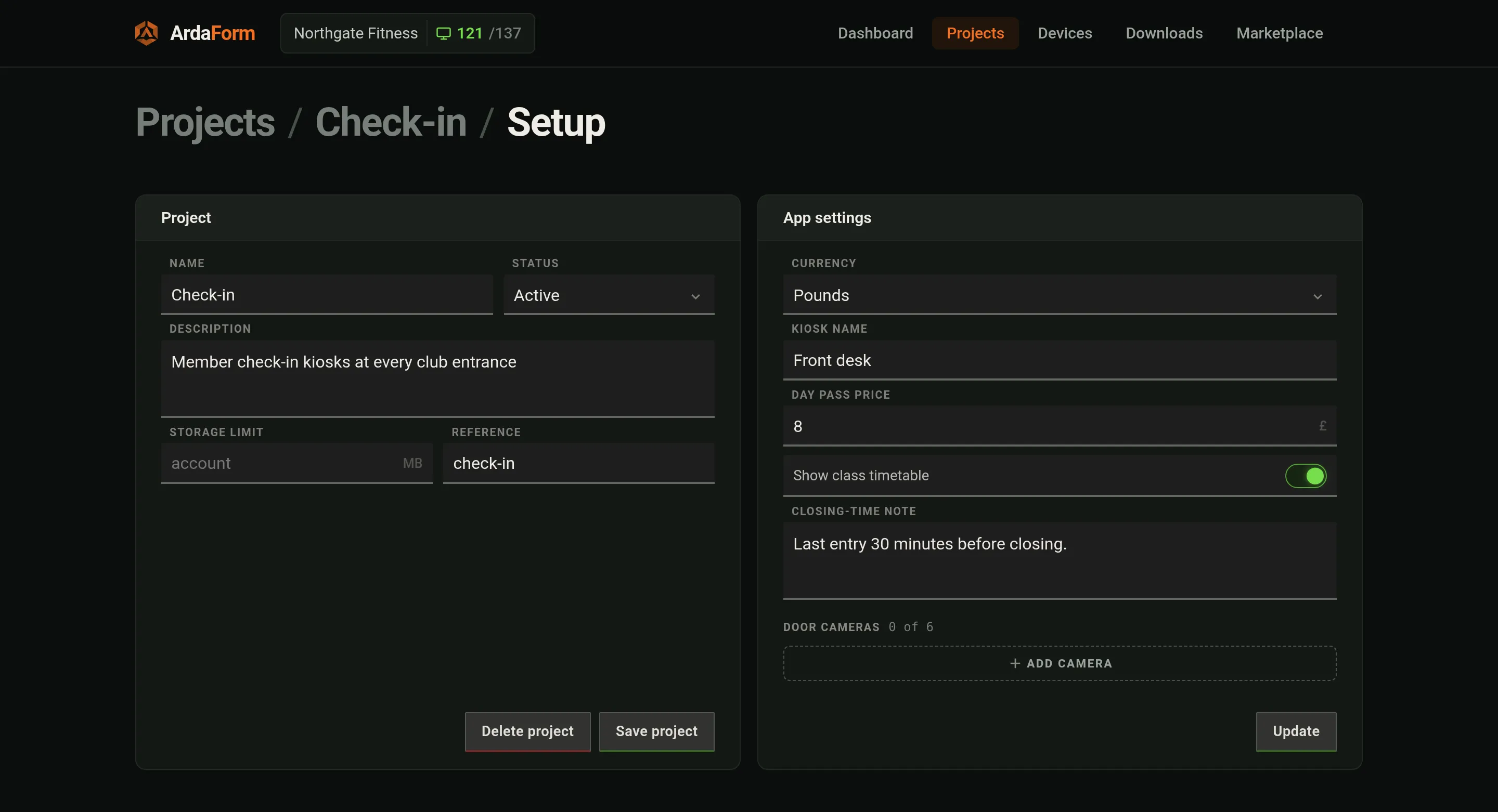
portal.ardaform.netTap to enlargeSetup. The project itself — name, status, description — beside the app’s settings. The settings are declared in your app’s manifest.json; their values are set here for the whole project, or per device on the device’s Setup tab. Save a change and running devices pick it up in a few seconds.
Integrations
Connect your devices to your own systems.
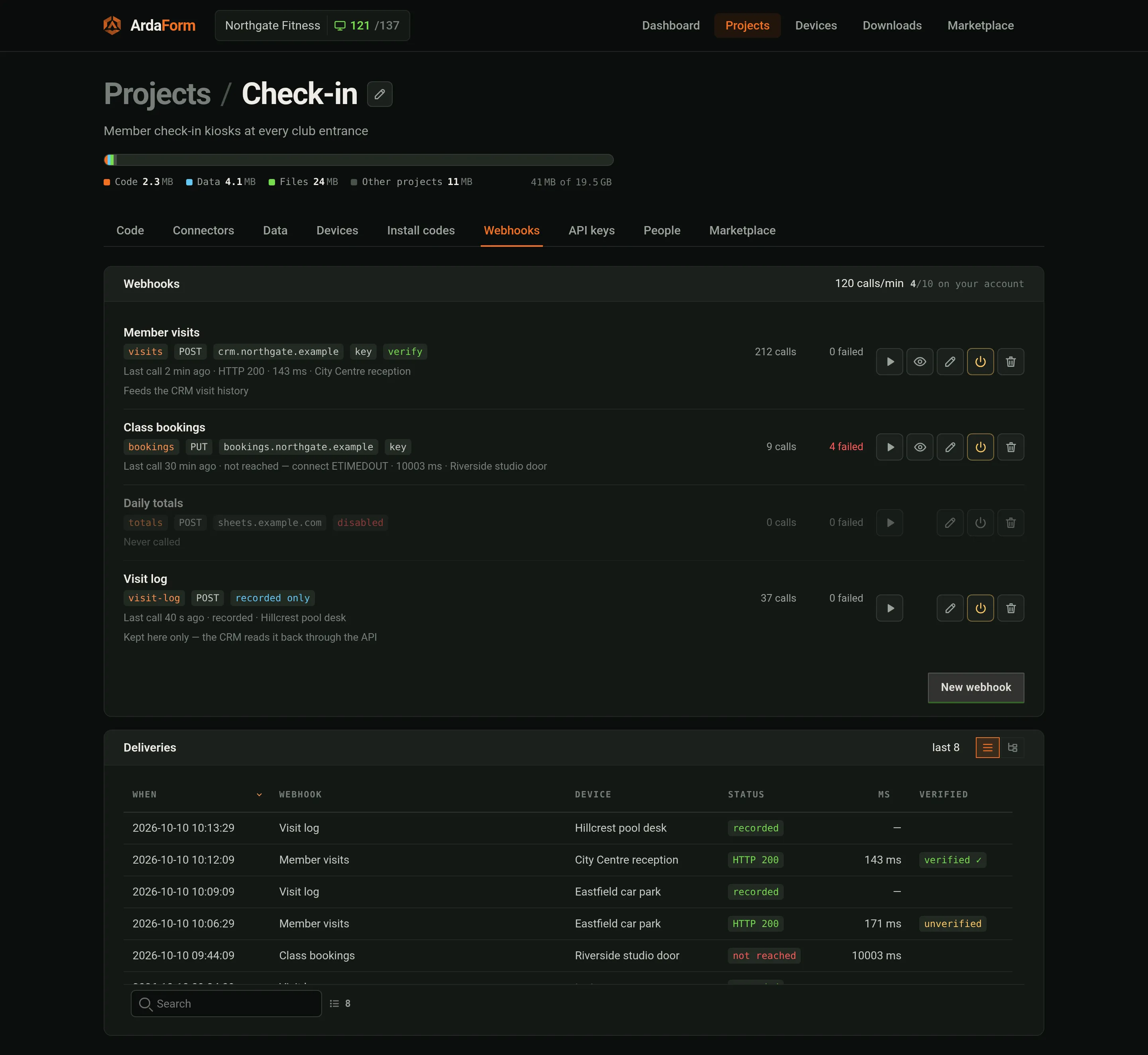
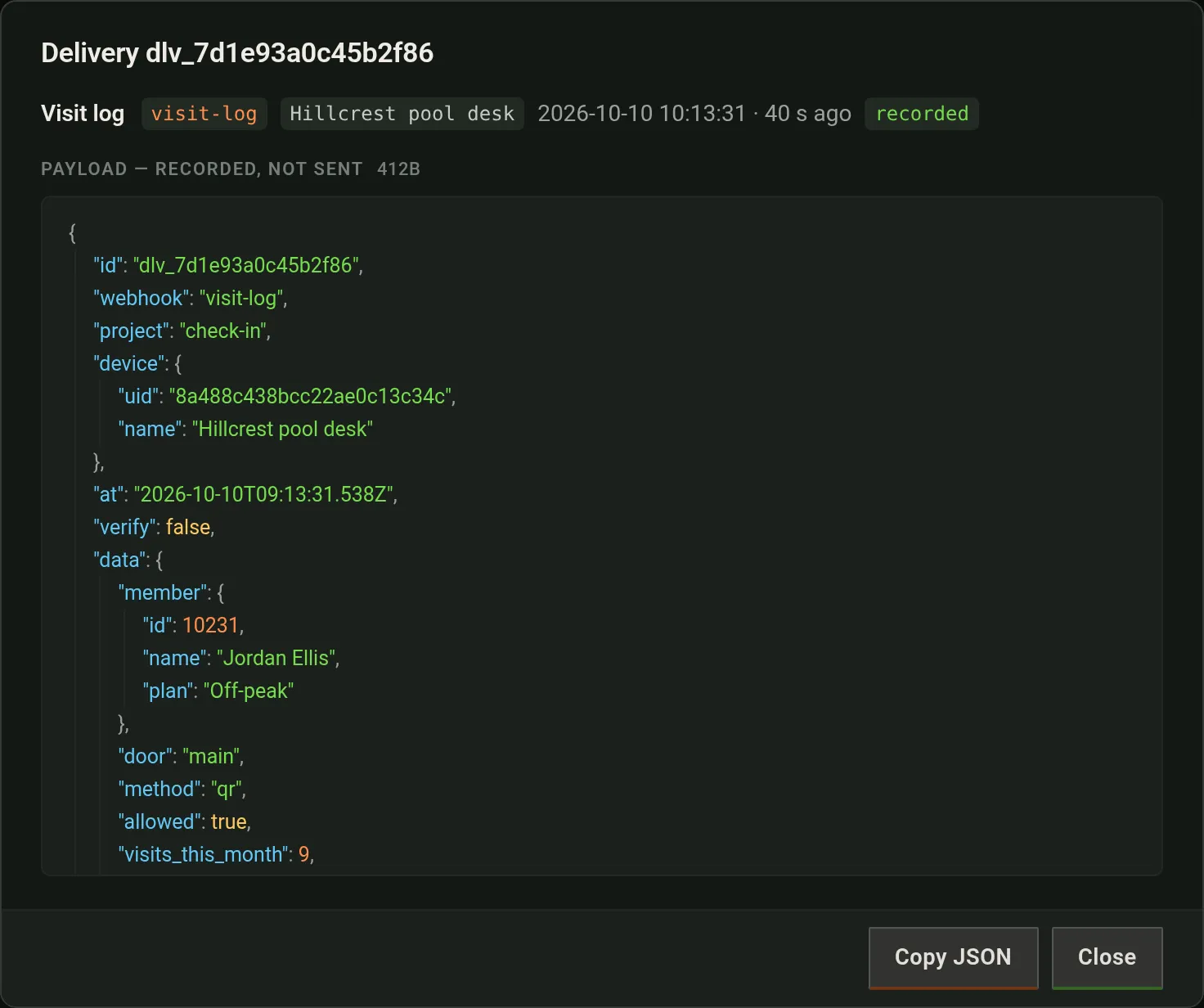
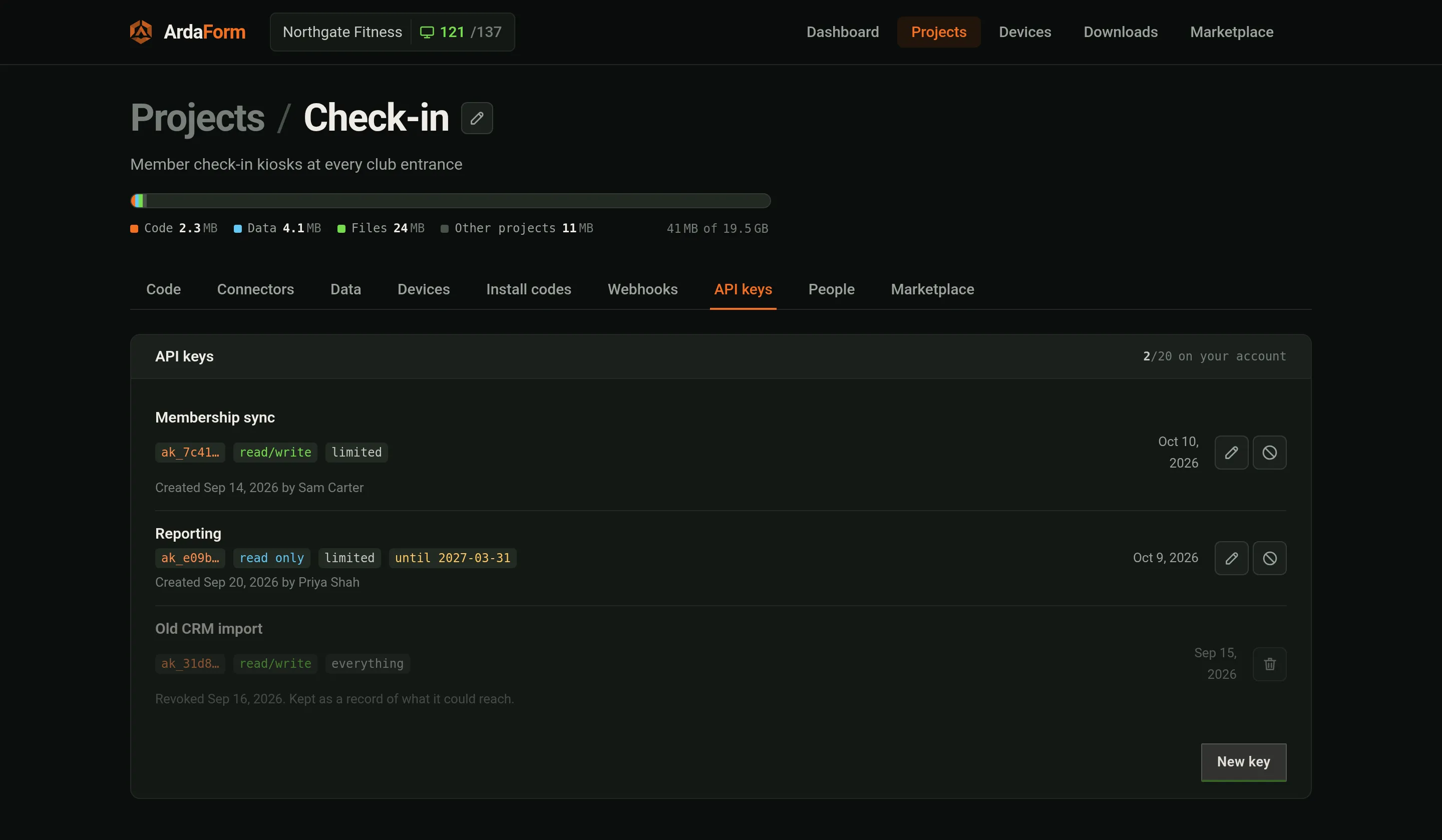
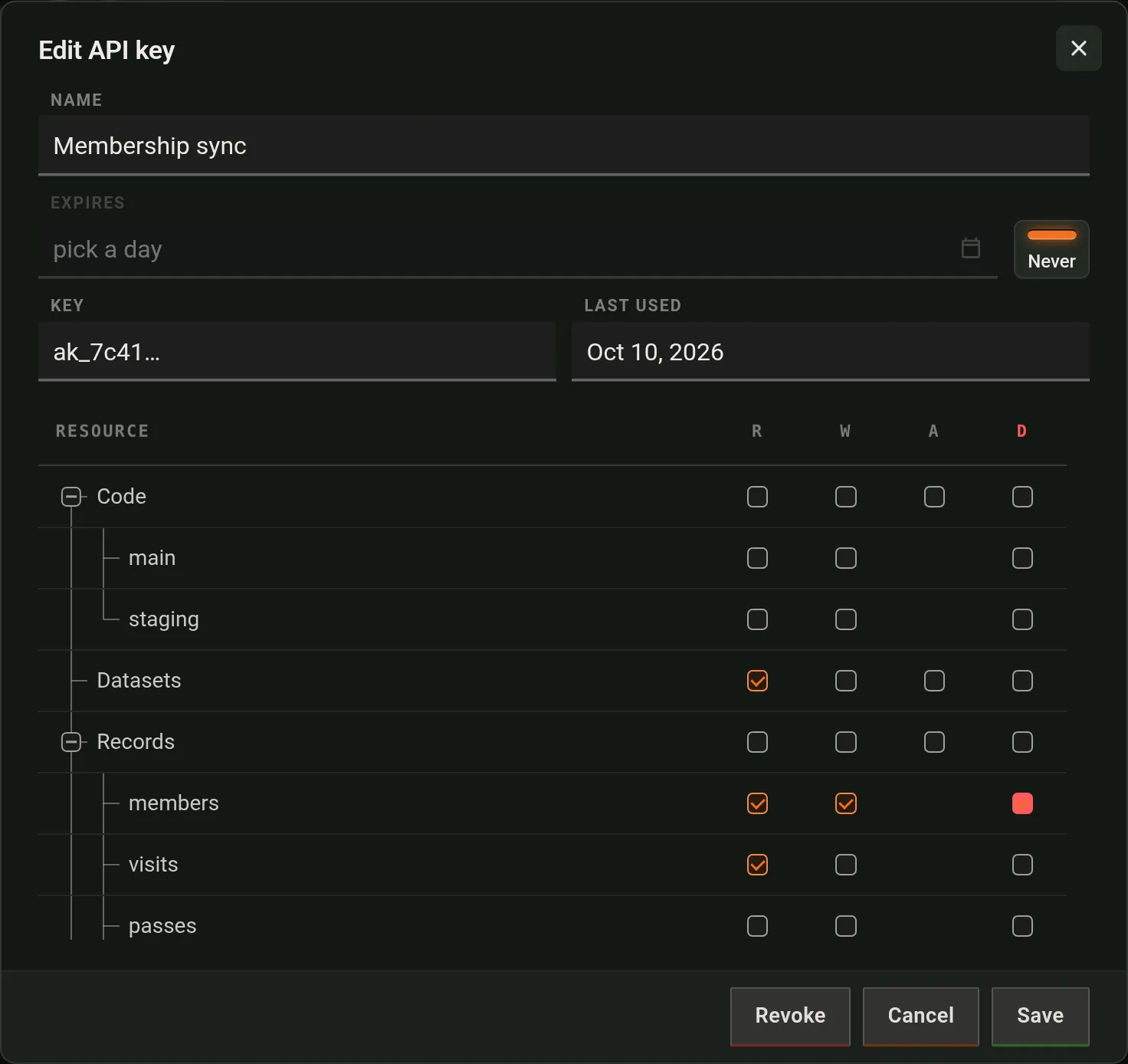
portal.ardaform.netTap to enlargeWebhooks. Addresses on your own servers that your app can call with Arda.webhook.call(). ArdaForm makes the call for the device — signed when the webhook has a key — and keeps a record. Leave the address empty and the calls are simply collected here for you to read later.portal.ardaform.netTap to enlargeOne delivery. Open any call from the Deliveries list to see exactly what was sent — here one kept by a webhook with no address, ready to copy. The list itself shows every call with its status, time and device.portal.ardaform.netTap to enlargeAPI keys. Keys for the HTTP API. Each key belongs to one project and is shown once, when you make it — copy it then.portal.ardaform.netTap to enlargeWhat a key may do. Choose exactly what a key may do — read, change, add or delete — area by area, down to single datasets, with an expiry date if you want one.
People
Who can work on a project.
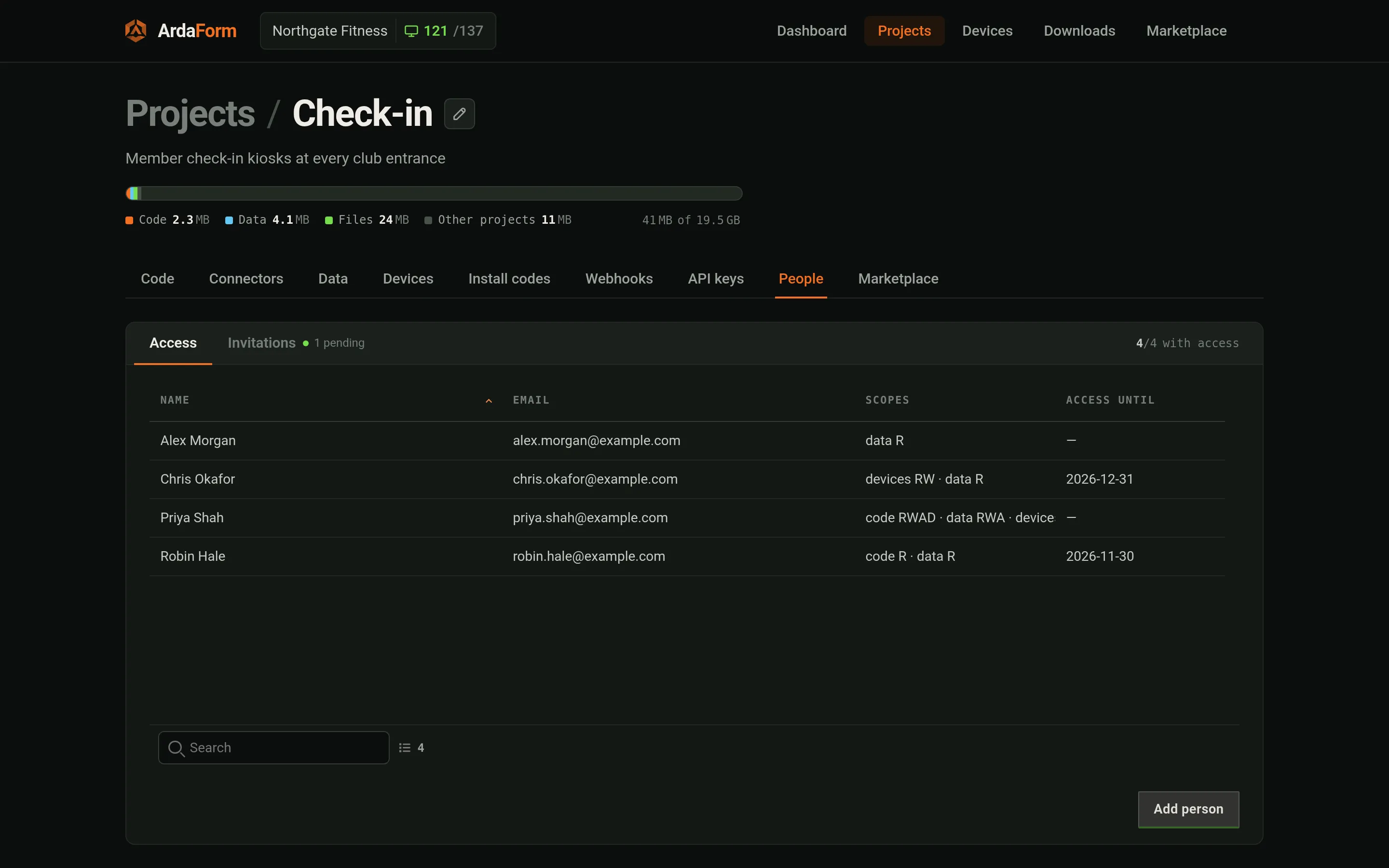
portal.ardaform.netTap to enlargePeople. Add someone who is already in your account, or invite someone new. Your plan sets how many invited people you can have.
Downloads & marketplace
Everything you install, in one place.
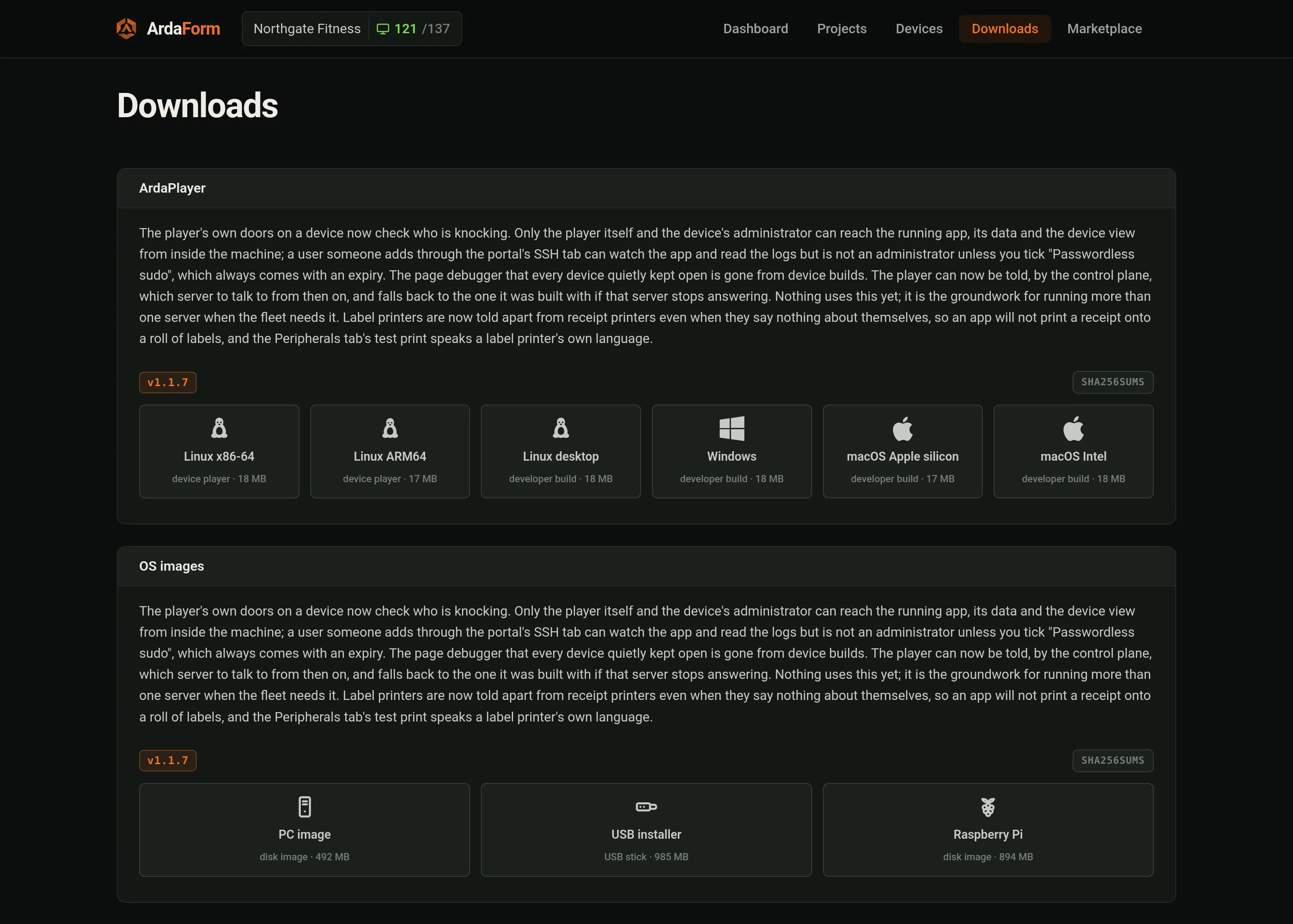
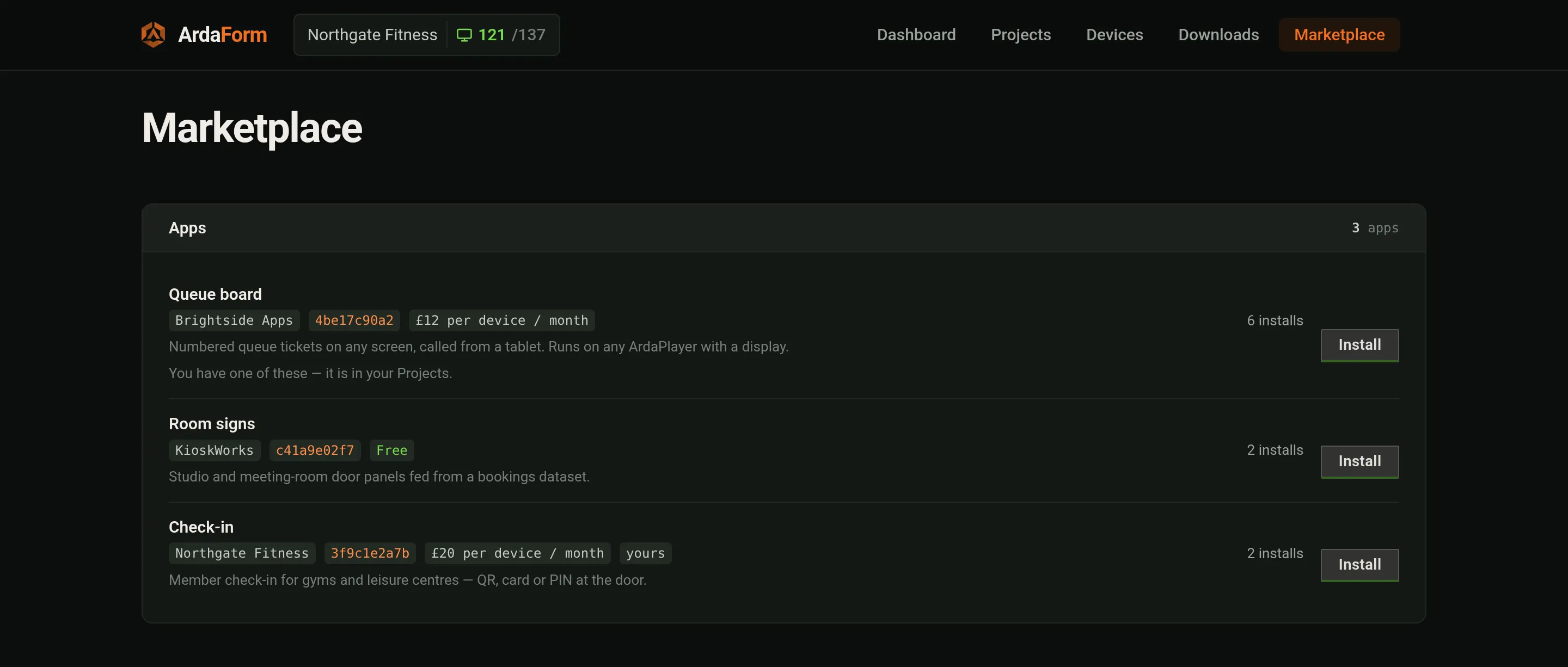
portal.ardaform.netTap to enlargeDownloads. ArdaPlayer for devices and for your own computer, the Raspberry Pi and PC images and the USB installer — always the latest versions.portal.ardaform.netTap to enlargeMarketplace. Apps other accounts have listed, ready to install into yours, beside your own. The sellers shown are sample listings; a price is only a label for now — paying through the Marketplace is not built yet.
Your account
You, your login and what you pay for.
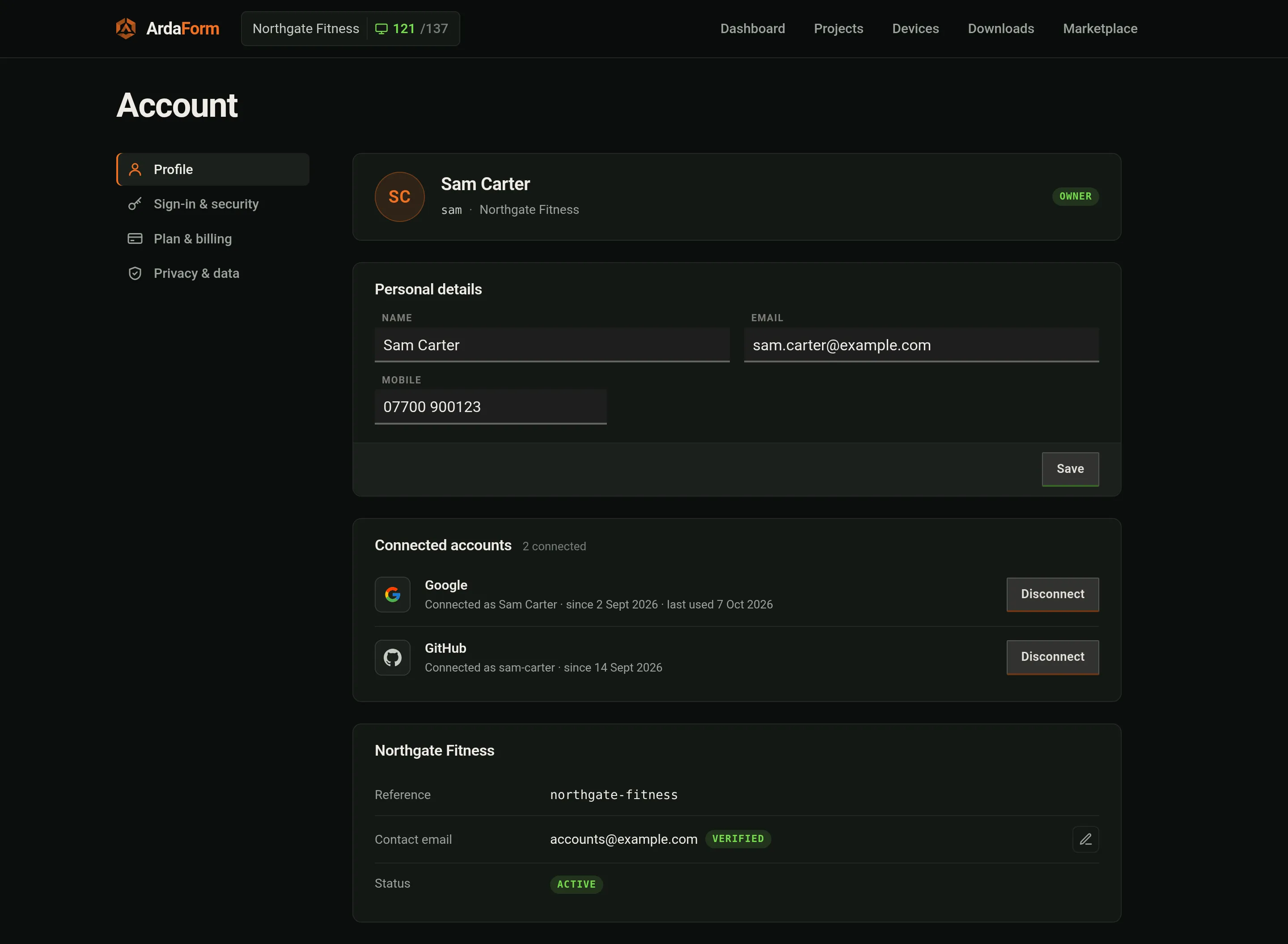
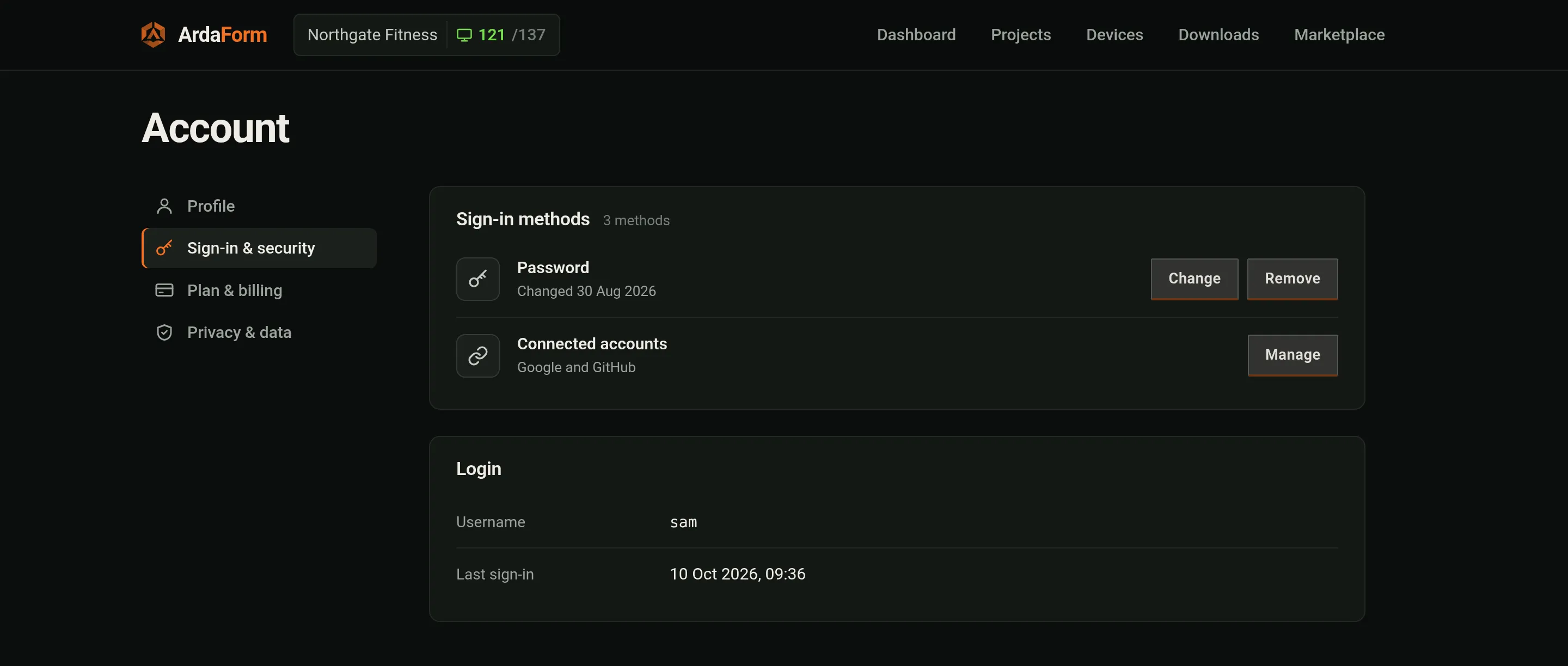
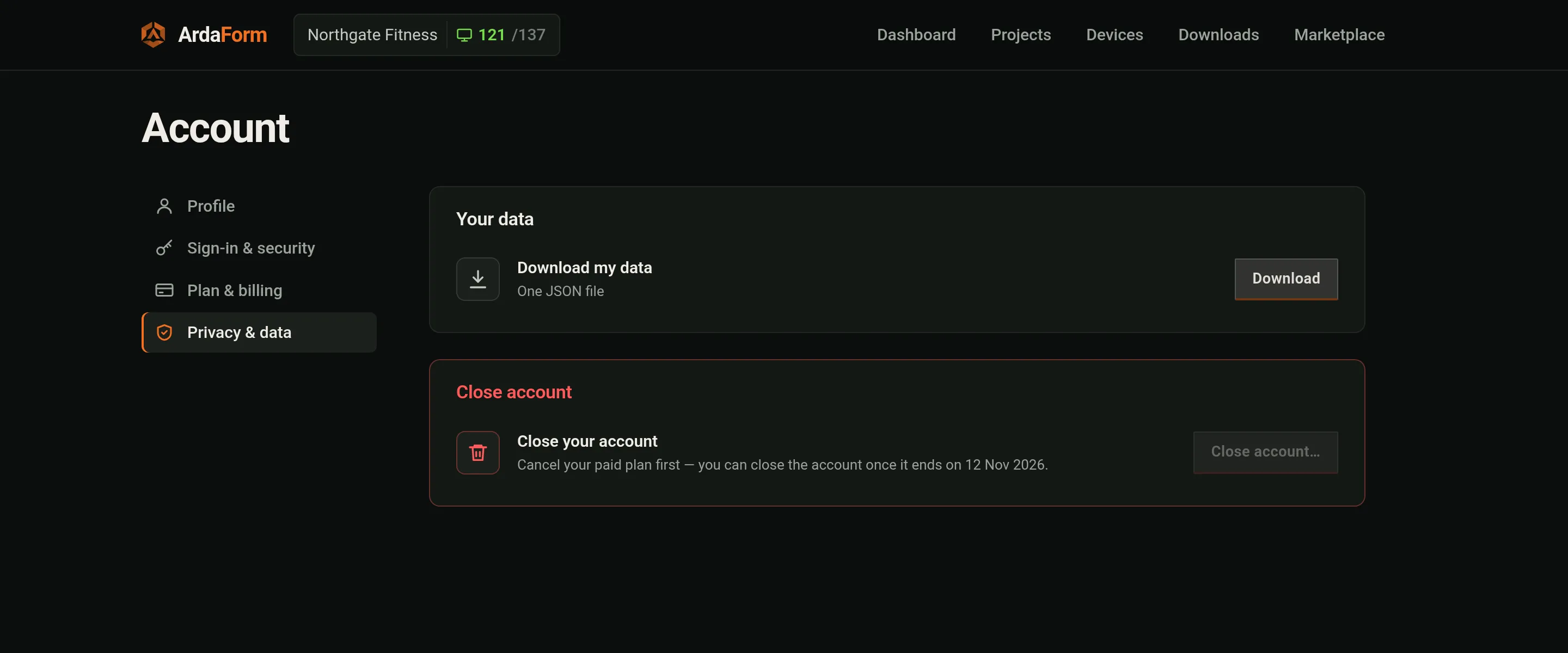
portal.ardaform.netTap to enlargeProfile. Your name and contact details, and the sign-in methods connected to your login.portal.ardaform.netTap to enlargeSign-in & security. Change your password and manage how you sign in.portal.ardaform.netTap to enlargeBilling. Your plan and what it allows, your invoices and orders, and the details printed on an invoice. Cards and receipts are handled by Stripe.portal.ardaform.netTap to enlargePlans. Compare plans and change yours. A bigger plan starts straight away; a smaller one starts at your next renewal. For more than 100 devices, ask us for a custom plan.portal.ardaform.netTap to enlargePrivacy. Download a copy of your personal data, or close the account — once any paid plan has ended.
On your phone
The portal works on a phone too, so you can check on things — or restart a device — from wherever you are.
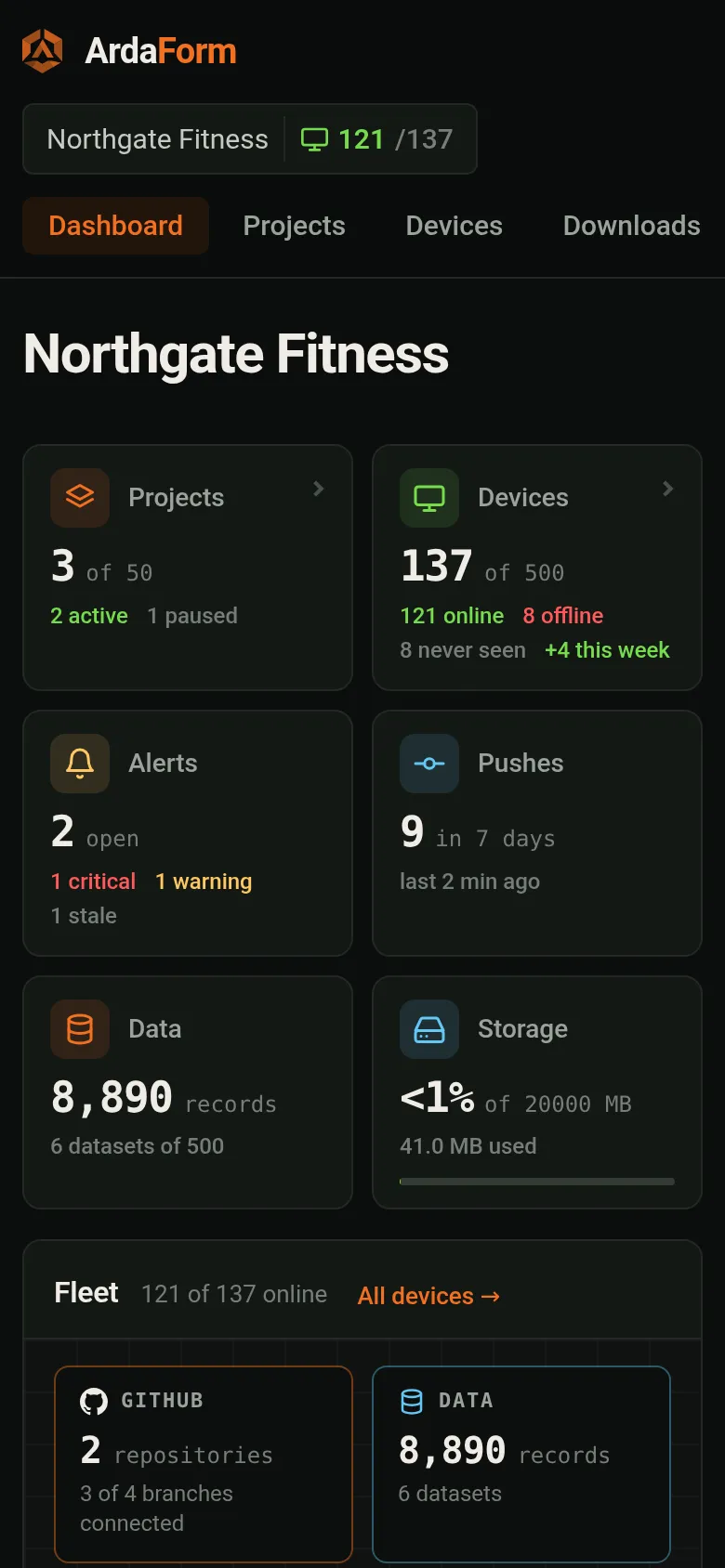
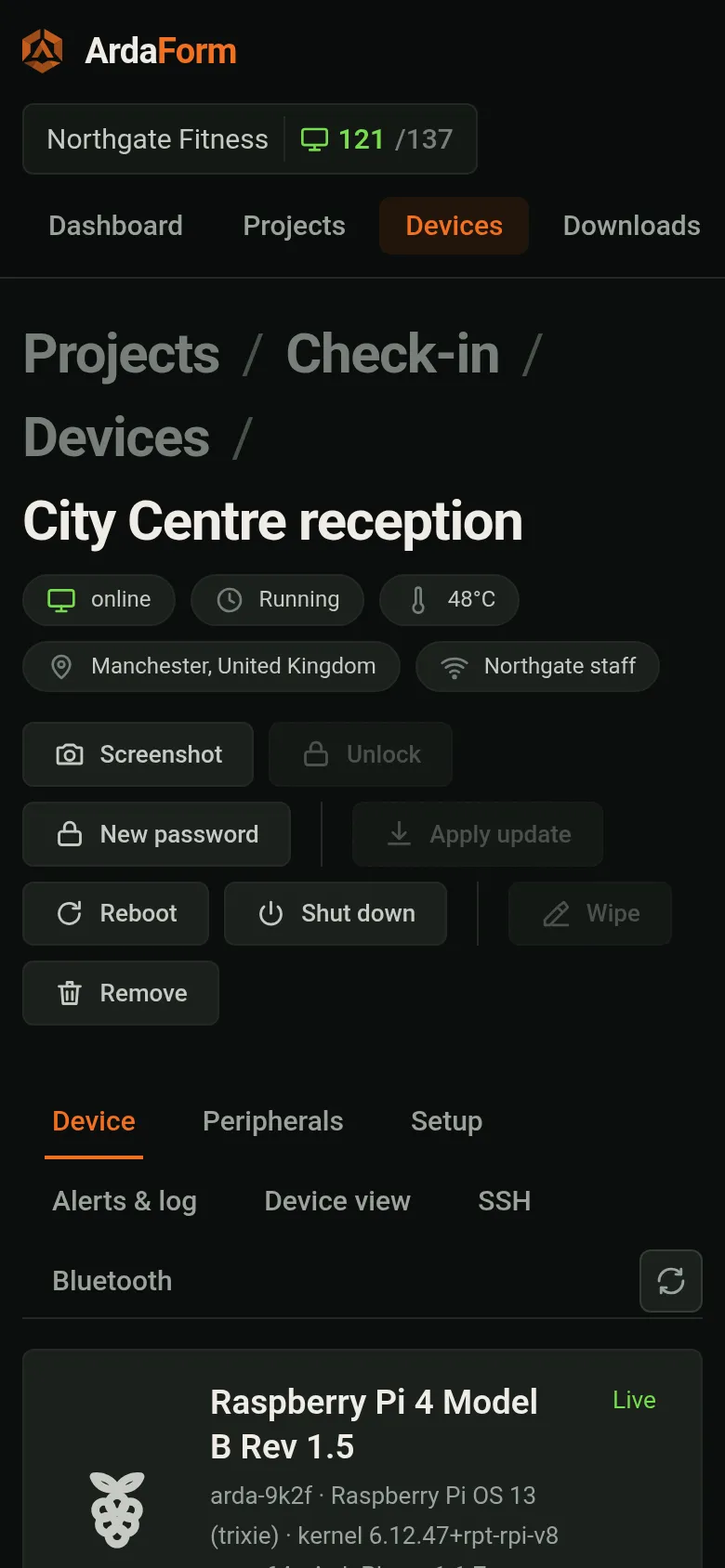
Dashboard. The fleet, alerts and pushes, stacked to fit.One device. A device’s state and its buttons, one thumb away.
 Arda
Arda